To setup basic automation on WhatsApp lets go through the steps to send OOO, welcome, and delayed messages on WhatsApp, we will be going through the first module i.e. Inbox settings. In this article, we‘ll help you understand how you can set these up on your Interakt account.
1. Steps to set up Out-of-Office Messages on Interakt
1. Before setting up your Auto replies, it is important to configure your business hours. These Auto Replies work on and around the business hours set by you.
2. Click on the pencil icon to enter the working hours. A pop-up appears which reads, “Set up your working hours”.
3. Click on the Day drop-down to select the day of the week. Do the same to enter the start time and end time. Repeat this for each day of the week. To do so, click on “+ Add hours,” which can be seen below the last entry made. These multiple entries allow you to make as many customisations to your out-of-office message as you want, per your business requirements.
4. If you wish to delete an entry, you can do so by clicking on the “Bin” icon next to each entry field.
5. Once you have entered your work timings, click on the “Save” button. The working hours preview will be visible to you.
Out Of Office Messages as Auto Replies
The Out Of Office message will be triggered in the conditions mentioned below. You can configure this message as an auto-reply for customers who contact you during non-business hours. Out Of Office hours refer to the time outside the business hours configured by you, and messages will be triggered accordingly.
The conditions for Out Of Office hours to be triggered are as follows:
1. In case of new users who reach out to your business during non-office hours.
2. In case of existing users and ongoing conversations, the Out Of Office message will be triggered only for conversations marked as “Closed”. Hence, please ensure that your user conversations that are addressed are closed and the “Open” queue is kept to minimum.
User conversations in the “Open” queue will not receive the Out Of Office message even if they reach out during the non-business hours.
There are essentially two major components to setting up the Out Of Office Message, i.e. the hours and the message. The first component will be applied from the business hours set already. Let us look at how the message can be set.
1. Click on the “pencil” icon next to the Out Of Office message header which opens a pop-up screen.
2. Writing the Out of Office Message is similar to how quick replies are created on Interakt. You can add here the message that you want to be triggered to the users. The message can be personalized by using variables, attachments and media files as well.
3. You can review all the details again. Post which, click on “Enable”. A success message appears on the right of the screen that reads, “Out of Office Message is enabled”. Once the Out Of Office message is enabled, the same Enable button is changed to “Disable” and can be used for the same.
Beyond just text, you can attach functional “Call to Action” elements to your OOO message to keep the lead warm:
Product Collections: You can automatically share your product catalog or specific collections so customers can browse your offerings while waiting for a human agent.
WhatsApp Forms: You can trigger a form to collect specific information (like an email address or the nature of their inquiry) so your team has all the context ready when they return.
Steps to set up the Welcome Message on Interakt
This allows you to configure welcome messages in case new customers or existing customers reach out to your business. The message is triggered against the first message dropped by the customer.
Note that in the case of existing users. The welcome message will be triggered only if the customer reaches out to the business after an interval of 24 hours. This is irrespective of whether the previous chat was kept Open or Closed. This is the only condition for the Welcome Message to be triggered.
1. To set up the Welcome Message, click on the “pencil” icon alongside Welcome Message, which opens a pop-up screen. Enter the message that you would like to trigger.
2. Writing the Welcome Message is similar to how quick replies are created on Interakt. Create the message that you want to be triggered to the users. The message can be personalized by using variables and attachments as well.
3. Once the message is finalized. Click on the “Save” button. The message is also visible in the preview section outside.
4. You can review all the details again. Post which, click on “Enable”. A success message appears on the right of the screen that reads, “Welcome Message is enabled”.
Personalized Welcome (New vs. Existing)
The checkbox “Set-up personalized welcome message basis new & existing customers” is a powerful segmentation tool:
- Unchecked: All users get the same generic greeting.
- Checked: You can tailor your tone. For example:
New Users: “Welcome to our store! Here is a 10% discount for your first order.”
Existing Users: “Welcome back! Great to see you again. How can we help you today?”
Interactive Call-to-Action Options
Option | What it does | Best Use Case |
Product Collections | Sends a list of categories (e.g., “Fresh Produce,” “Dairy”). Clicking one sends the full catalog for that category. | For e-commerce stores looking to drive immediate sales. |
Workflow | Triggers a pre-built automated chat flow (chatbot) to answer FAQs. | For businesses with high inquiry volumes about shipping or pricing. |
WhatsApp Form | Displays a structured form for the user to fill out. | For service-based businesses needing to collect lead info (Email, Location, etc.). |
None | Sends only the text message. | For a simple, clean greeting without immediate sales pressure. |
The “Send along with OOO” Logic
The toggle at the bottom of your image is a critical setting for managing customer experience:
If set to “Yes”: During your non-business hours, the customer will receive both the Welcome Message and the Out of Office message. This is useful if your Welcome message contains essential info (like a catalog) and your OOO message provides the timing expectation.
If set to “No”: The OOO message takes priority during off-hours, and the Welcome Message is suppressed. This avoids cluttering the chat with two automated replies at once.
Delayed Response Message
When end customers reach out to your business, there may be situations where you are unable to respond to their chats on Interakt on time. This delay in responding to customer messages or queries can happen due to several reasons, such as:
- A high surge of inquiries, increased traffic, or heavy workloads, leading to delayed responses
- Bandwidth issues due to team unavailability
- Downtime caused by outages or other urgent issues that require immediate attention
Triggering a delayed message in response to a customer message that has been left unanswered has the following advantages:
- Keeps customers informed about the delay
- Improves the overall customer experience, especially for sales and support conversations
Steps to setup Delayed Response Message on Interakt
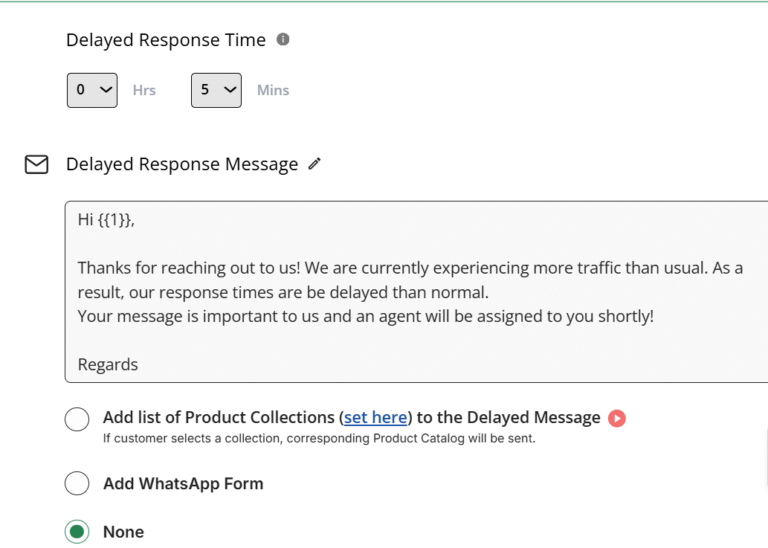
The Delayed Response Message is Interakt’s “patience manager.” While the Welcome Message greets a user immediately, the Delayed Message is only sent if your team is unable to respond within a specific timeframe during business hours.
Note: The delayed message time cannot exceed 24 hours. This upper limit ensures compliance with the WhatsApp rule, which restricts responses to user messages after 24 hours.
1. Click on the drop-down arrow under “Delayed Response Time” to set the same.
The Wait Timer (Delayed Response Time): At the top you see the Hrs and Mins selectors. This is the “grace period.” In this example, it is set to 5 minutes.
If an agent replies within 5 minutes, the customer never sees this message.
If 5 minutes pass without an agent reply, Interakt automatically sends the message to reassure the customer they haven’t been forgotten.
2. You can add here the message that you want to be triggered to the users. The message can be personalized by using variables, attachments, and media files as well.

The Delayed Response Auto Reply gets triggered for unanswered customer messages left in the Open state (Assigned chats) and the Unassigned chats. It is applied during the working hours, as messages from customers during non-business hours receive Out Of Office Auto Replies.
CTA Options: Just like the other automations, you can choose to:
Add Product Collections: Let them shop while they wait.
Add WhatsApp Form: Have them leave details about their issue so the agent can be better prepared when they finally jump in.
None: Keep it as a simple status update
We hope this article helped you understand how to set up automated messages on the Interakt platform and keep your customers engaged even when you are unavailable to answer their queries in person.