
Managing high-volume customer queries doesn’t have to be overwhelming. Interakt’s Quick Reply feature allows your team to answer frequently asked questions (FAQs) instantly, ensuring consistency and saving valuable time.
Follow this guide to set up, personalize, and use Quick Replies effectively.
1. How to Create a Quick Reply
Before you can use shortcuts in the inbox, you need to build your library of responses.
Navigate to Settings: Click the Settings icon in the top-right corner of your Interakt dashboard.
Before you can use shortcuts in the inbox, you need to build your library of responses.
- Navigate to Settings: Click the Settings icon in the top-right corner of your Interakt dashboard.
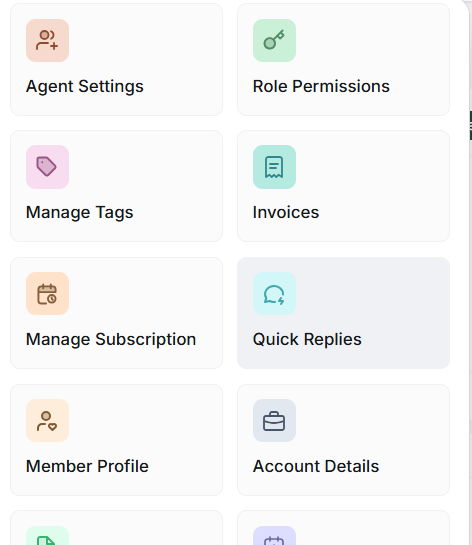
- Select Quick Reply: From the menu, choose the “Quick Reply” option.
- Draft Your Message: Click “Add Reply” to open the creator. Enter the text you find yourself typing most often (e.g., pricing details, store hours, or shipping policies).
- Add Personalization (Variables): To make automated messages feel personal, click “+ Add Variable.” * Assign a value (like “User Name”) so the system automatically pulls the customer’s info.
- Set a Fallback Value: Always provide a backup (e.g., “Customer” or “Hey there”). If the user’s name isn’t in your database, Interakt will use this fallback instead.
- Include Media: You can attach images or documents to your Quick Reply to provide more context.
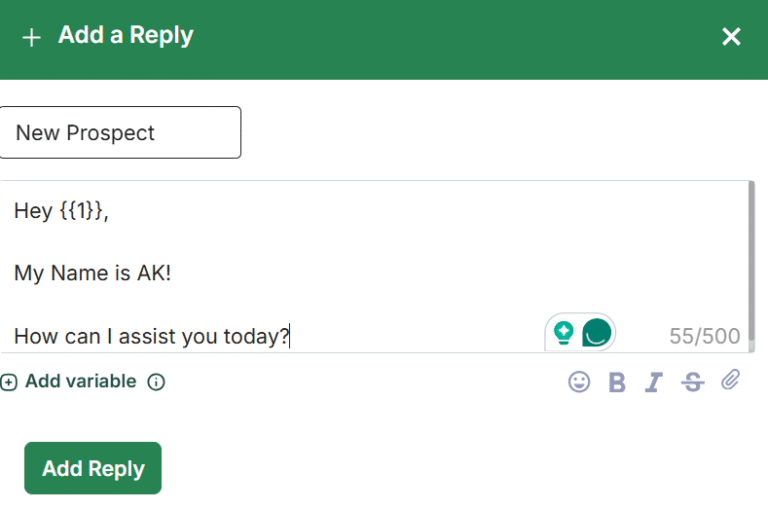
- Save: Click “Add Reply” to finalize. You will now see the creator’s name and the date it was added for internal tracking.

2. How to Send Quick Replies in the Inbox
Once your replies are saved, your team can deploy them during live chats in two ways:
Option A: The Icon Shortcut
In the Interakt Shared Inbox, look at the message composer section
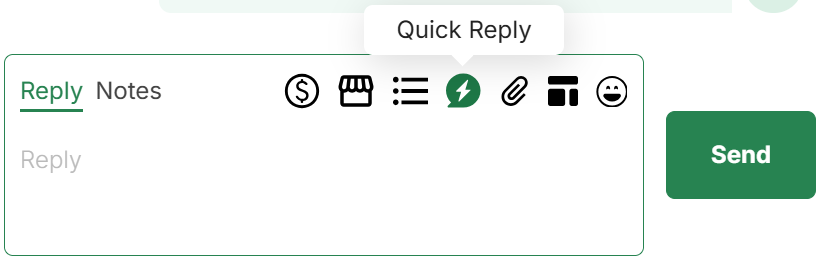
- Click the Quick Replies icon to browse your saved list and select the appropriate response.
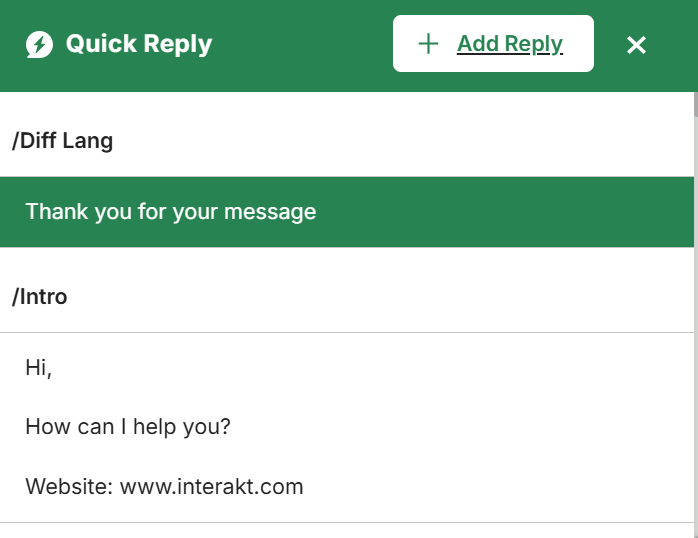
Option B: The “/” Command (Fastest)
Simply type a forward slash (/) directly into the message box. This will trigger a searchable dropdown of all your Quick Replies.
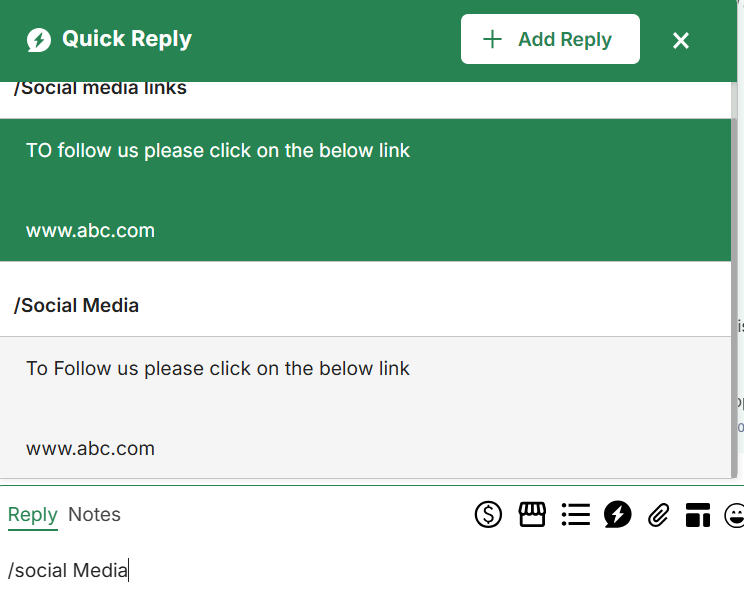
- Search: Type the name of the reply to filter the list.
- Select: Use your arrow keys to navigate and press Enter to select.
- Send: Hit the send button to deliver the personalized message to the user.
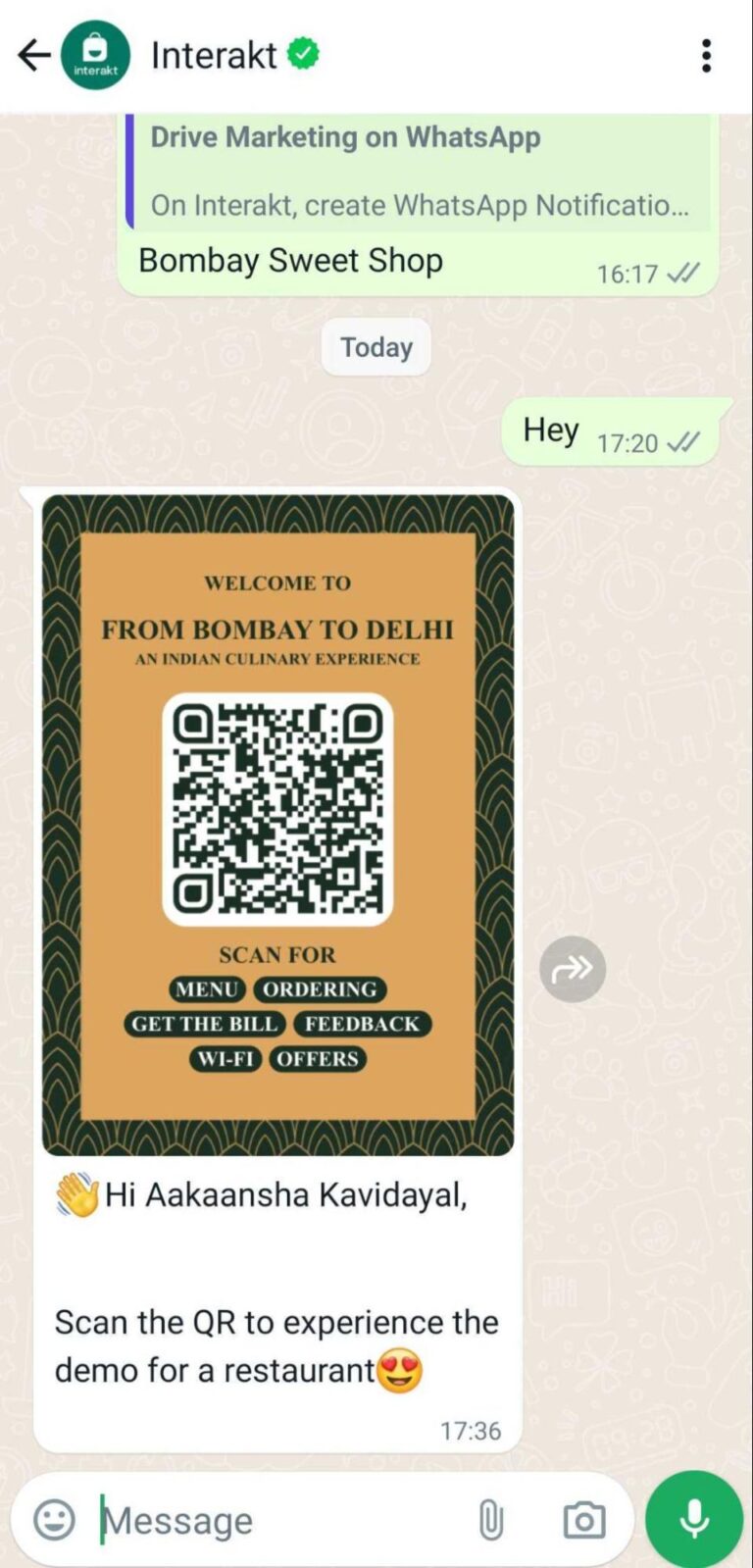
This is how the Quick Reply will appear to your user on the user’s WhatsApp chat screen. As you can see, Interakt has replaced the variable with this user’s name.