


Your WhatsApp Business profile is the first thing customers see when they look up your business on WhatsApp. A complete, well-configured profile builds trust and makes it easier for customers to reach you. This guide walks you through setting up your profile appearance using the WhatsApp Business API dashboard.
Before You Begin
Your WhatsApp Business number and display name cannot be changed once approved. Make sure these are finalized before proceeding.
Step 1: Navigate to Business Account Appearance
- Log in to your Interakt account, go to the settings icon, and click on the WhatsApp Profile.

- You will land on the Business Account Appearance page. This is where you configure everything that customers will see on your WhatsApp Business profile — your logo, description, and contact details. You’ll see three collapsible sections: Business Logo, Description, and Contact Information.

Step 2: Upload Your Business Logo
Click on the Business Logo section to expand it.

Your logo appears as the profile picture for your business on WhatsApp. Click the Upload your logo button and select your image file.
Logo requirements:
- Square image (recommended: 640 × 640 px)
- Maximum file size: 5 MB
- Avoid images smaller than 192 × 192 px, as they may appear blurry when resized
Step 3: Add a Business Description
Click on the Description section to expand it. There are two things to fill in here:
Your Business Bio: Write a short introduction to your business. Tell customers who you are and how you can help them. This text appears directly on your WhatsApp profile under the business description section.

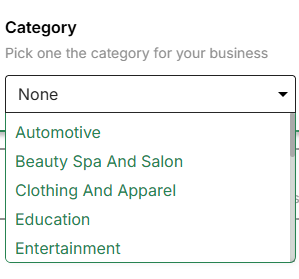
Category Use the Category dropdown to pick the industry that best fits your business. Available options include:
- Automotive
- Beauty Spa and Salon
- Clothing and Apparel
- Education
- Entertainment
- (and more)
Selecting the right category helps customers understand what kind of business you are at a glance.
Step 4: Add Contact Information
Click on the Contact Information section to expand it. Fill in the following fields:
- Your Business Address — Your physical business location (e.g., street, city, country)
- Your Business Email Address — A contact email that customers can use to reach you at
- Your Business Website — Your website URL
All of this information will be visible to customers on your WhatsApp profile page.

Step 5: Save and Go Live
Once you’ve filled in all the sections, click the Save & Set Live button. Your profile will be updated and visible to customers on WhatsApp.
What Your Profile Looks Like to Customers
Once live, customers who open your business profile on WhatsApp will see:
Profile Element | What It Shows |
Logo | Your uploaded image as the profile picture |
Name | Your approved WhatsApp Business display name |
Verification | A green tick (✓) next to your name if approved by Meta |
Business Type | The category you selected |
Business Description | Your business bio |
Address | Your physical location |
Your business email | |
Website | Your website link |
Tips for a Strong Profile
- Keep your bio concise but informative — aim for 2–3 sentences that clearly describe what you offer.
- Use a high-resolution logo — a crisp, square logo looks professional and builds brand recognition.
- Double-check your contact details — incorrect email or website URLs can frustrate customers trying to reach you.
- Pursue Meta verification — getting the green tick adds credibility and increases customer trust.
That’s it! A complete WhatsApp Business profile helps customers find, trust, and connect with your business more easily.