

What are Workflows?
Workflows in Interakt are a powerful no-code automation feature that allows businesses to create WhatsApp chatbot flows that respond to customers, collect data, and guide users through various processes—all without writing a single line of code.
These are especially useful for:
-Automating FAQs, lead qualification, order tracking, and more
-Asking sequential questions in a structured conversation
-Capturing user responses and storing them as variables
-Exporting collected responses for further analysis or engagement
By setting up workflows, you can engage users in personalized conversations, gather essential information, and automate responses that previously required manual intervention.
Use Case Examples
Interakt Workflows allow you to:
-Collect and save customer details like Name, Email Address, Phone Number, Job Title
-Trigger follow-ups based on collected data
-Use stored information to personalize WhatsApp campaigns
-Run flows like Order Tracking, Product Feedback, Returns/Exchanges, etc., within a single chatbot
Saving User Responses: Variable Types
When a user answers a question inside a workflow, you can save their response in one of two ways:
1. User Traits
️– Persistent data saved to the user profile
️– Ideal for values like name, email, or location
️– Can be reused in future automations or campaigns
2. Workflow Variables
️– Temporary values used only within the current flow
️– Useful for short-term logic (e.g., a choice between two paths)
Use User Traits when the data needs to be remembered for future use.
Use Workflow Variables for temporary responses within the conversation.
Step-by-Step Guide: How to Create a No-Code Workflow
Step 1: Navigate to the Workflow Builder
1. Log in to your Interakt account
2. Go to Automation
3. Click on the Workflows
4.Click “New Workflow” (top-right corner)

Step 2: Choose a Template or Start from Scratch
-Choose a predefined template, or
-Click Start from Scratch for a custom setup

Step 3: Name Your Workflow
-Enter a unique name (e.g., Product Feedback Flow)
-Make sure it’s not identical to existing Workflows or Custom Autoreplies
This avoids trigger conflicts and ensures only one response is sent per user action

Step 4: Set a Trigger
Triggers determine what starts the workflow. There are 2 options to set a trigger.
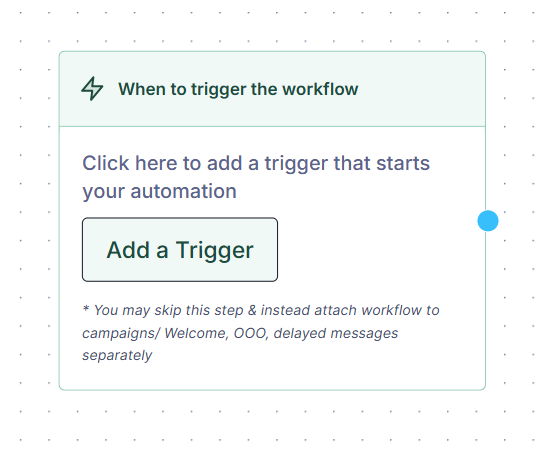

Option 1: User Sends a WhatsApp Message
-Trigger type: Exact Match, Contains Keyword, Any, or Intent Match
This interface allows you to define exactly what user input should kick off an automated workflow. It’s the “entry point” that determines when your bot or automation takes over from a manual conversation.
Exact Match: Triggers only if the message is identical to your keyword.
Contains: Triggers if the keyword appears anywhere in their message.
Saving Trigger Keyword in Field
This functionality allows the system to capture the exact keyword that triggered the workflow and save it into a user trait or workflow variable. A common use case for this is capturing coupon codes that users type to trigger specific discount flows, allowing the workflow to reference the specific code later in the conversation.

Any: Acts as a “catch-all” for every incoming message. This feature serves as a fallback mechanism. While standard triggers look for specific keywords (like “Hi” or “Help”), the “Any Keyword” option will trigger a workflow regardless of what the user types, provided the input doesn’t already trigger a different, more specific workflow. This is useful for ensuring a consistent response to any general customer input.
Understanding and Setting Up AI Intent Match
AI Intent Match is an intelligent automation feature that enables your system to understand and respond to user messages based on the intent of their queries, rather than relying solely on exact keyword matches. This ensures that your automated journeys are more resilient and can handle users’ natural-language input more effectively.
What is AI Intent Match?
Traditionally, workflows are triggered by specific keywords or “contains” logic. AI Intent Match expands this by acting as a system-wide intelligence layer. Once enabled, it applies to all workflows and custom order replies, helping to trigger the correct automation even if the user’s phrasing varies slightly from your predefined triggers.
How to Set Up AI Intent Match
Setting up the feature is a straightforward process within the interface:
- Navigate to Automation: Hover over the left-hand sidebar and select the Automation tab.
- Select AI Intent Matching: Click on the AI intent matching sub-option.
- Enable the Feature: Click the enable button.
- Confirmation: You will see a banner at the top of the screen confirming that AI intent matching has been successfully activated for all workflows and custom order replies.
Where AI Intent Match Adds Value
- Handling Unstructured Inputs: It serves as a fallback mechanism, ensuring that user messages that don’t trigger a specific keyword-based workflow are still processed and matched to the most relevant intent.
- AI Agent Takeover: In scenarios where a workflow uses validation rules (e.g., asking for an email or document), a user is allowed up to 3 attempts to provide the correct format. If the user fails all three times, the workflow breaks, and the AI agent takes over the conversation to resolve the intent manually.
- Performance Monitoring: You can download reports for past data on AI intent matches. This allows you to analyze which intents are being matched frequently and refine your automated responses based on actual user behavior.

Option 2: User Responds to a WhatsApp Campaign
-Select the campaign that this workflow should respond to.
-Now Choose Trigger on Button Click or on Typed Reply

Step 5: Build the Workflow
Use the drag-and-drop builder to structure your chatbot:
Example: Add a WhatsApp Form
- Drag Send WhatsApp Form from the left panel
- Enter:
-Display text: “We’d love your feedback!”
-Button label: “Give Feedback.”
-Select your form
-Choose Navigate to First Screen
3.Click Save Step

Add a Thank You Message or a Response you want to share once the form is filled.
1. Drag Send Message node below the form
2.Message: “Thank you for your feedback! 😊”
3.Optional: Add buttons, images, or files
4.Click Save

Step 6: Save & Publish
Click Save Workflow to activate your chatbot automation.
What is a Node?
Each step ( message Box) in the workflow is represented as a node. The following basic actions are available for each node:

- Duplicate: Creates a duplicate of the node.
- Delete: Prompts a confirmation alert before deletion.
- Color Code: Users can assign color codes to nodes, making it easier to navigate large workflows with multiple nodes.
- Edit: Opens an edit view for the node.
- Set start node – You can easily set a start node by clicking on the ‘Se Start Node’ tab. Once you do, a flag will appear on the top left side of the Node.
You can easily Duplicate & delete a node from the 3-dot menu.
‣ Unset Start Node:
‣ By default, the first node is the start node.
‣ Users can unset the start node and assign another.
‣ Before saving, the system validates whether a start node is set. If none is found, an error prompts: “Please select the start of the workflow before saving.”
Message Nodes
Plain Message
The Plain Message node is the most direct way to communicate with a customer. It is designed to deliver text-based information, updates, or instructions without requiring the user to click buttons or select from a list.

Message with a List Button

The Send a Message node with a List configuration is a high-engagement tool designed to offer users multiple choices in a clean, organized format. Unlike standard buttons that take up significant screen space, a List presents options in a compact menu, making it ideal for catalogs or service menus.
This shortcut allows you to pull in pre-saved list of items or products, saving time on manual entry.
Message with a Button

The Send a Message node with a Quick Reply Button is designed to guide users through a workflow by providing clear, clickable options. This reduces the need for users to type and ensures they stay on the correct path within the conversation.
Key Components
- Message Body: The primary text area (up to 1024 characters) where you deliver information or instructions.
- Quick Reply Buttons: Under the Add more dropdown, you can add up to three buttons (e.g., “Try Again,” “Talk to Agent,” or “Main Menu”). These buttons trigger the next specific node in your workflow when tapped.
- Button Text Limit: Each button label has a 20-character limit, encouraging clear and actionable labels.
- Variable Integration: You can use variables in the message body to personalize the text for each user, though buttons themselves remain static.
Message with an Image
The Send a Message node with an Attachment is designed to create visually rich, high-impact interactions. By combining text with media, you can capture attention more effectively than with plain text alone.
Key Features
- Media Upload: Under the Add an attachment section, you can upload images (JPEG or PNG). For the best visual experience on WhatsApp, it is recommended to use a 1080×1080 (square) resolution.
- Contextual Personalization: You can use the Add variable feature to personalize the caption. In this example, {{1}} is mapped to the user’s name, turning a generic sale announcement into a personal invitation.
- Dynamic Captions: The text accompanying the image supports up to 1024 characters, allowing you to explain the visual or provide a clear call to action.
- Interaction Readiness: Like other message nodes, you can still enable Save user response to capture the customer’s immediate reaction or answer after they see the image.
Message with a Video

WhatsApp Form Message Button
It allows you to send an interactive, native form directly within the chat. This is a high-conversion tool designed to collect structured lead data or customer feedback without forcing the user to leave WhatsApp.
By using native forms instead of external links, you reduce “drop-offs” and ensure that the data collected is automatically mapped back to the user’s profile in your CRM.

How to Update Field / Add Tag
Keeping your CRM up to date is now easier than ever. This new node allows you to automatically update customer information or categorize them with tags as they move through your workflow.
Capabilities
- Combined Actions: Update customer fields, add tags, or do both simultaneously in a single step.
- Smart Selection:
1. Fields: Choose from a dropdown of your available customer fields.
- Preset Values: For fields like CRM Status or WhatsApp Opt-in, you can select from a predefined list (e.g.,”New Lead, “Closed Won” for CRM Lead status and “Yes/No for WhatsApp Opt-in”) instead of typing manually.
2. Tags: Use the searchable tag selector to find and apply existing tags or create new ones.
Usage Limits per Node
Field Updates – Max up to 3 fields
Tags Added – Max up to 10 tags


What is the Calculate Value node?
The Calculate Value node is designed for use cases where a final value depends on various user inputs, such as calculating the price for a villa booking based on the number of people and days
- Formula Builder: You first select the fields (user traits or workflow variables) you want to include in your calculation. Once selected, these fields appear in a formula builder where you can apply mathematical operators (e.g., multiplying a field value by a fixed number)
- Storage: After the formula is set, you choose a target field, either a permanent user trait or a temporary workflow variable, to store the final calculated output. This value can then be used in subsequent nodes, such as a message to the customer or a payment link

What is a Clear Variable Node?
In many workflows, user traits are overridden by the latest value, which can sometimes cause logic errors. The Clear Variable node allows you to explicitly clear a particular value in a specific field when it is no longer needed or needs to be reset for a fresh interaction.

Send Payment Link
This node allows you to automate payment requests within a chat.
- Prerequisites: You must have an active payment gateway integration with Razorpay or PayU.
- Configuration: You can set the currency and the amount. The amount can be fixed (a static value for every user) or dynamic (pulling a value from a user trait or workflow variable, such as a price calculated in a previous node).
- Currency: Like the amount, the currency can also be static (e.g., always INR) or dynamic based on the user’s location or previous selections

Set a Condition Node
The node works on an If/Then logic. It evaluates a specific data point against a value you define. If the condition is met, the workflow follows one path (Success); if not, it follows another (Failure).
Condition Types
You can base your logic on two primary data sources:
User Trait: These are permanent or semi-permanent attributes attached to a customer’s profile (e.g., City, Subscription Plan, Language, or a custom tag like “VIP”).
Workflow Variable: These are temporary data points captured during the current session or flow (e.g., a specific response the user just typed or a value fetched from a previous Webhook).

Pass A Conversion

The Pass a Conversion Event node is a tracking tool used to measure the success of your WhatsApp and Click-to-WhatsApp (CTWA) campaigns. It signals to the system that a user has completed a high-value action within your workflow.
When a user progresses through a flow and reaches this specific node, it “pings” the system to record a completed milestone.
- Event Name: You define a unique label for the action (e.g., Form_Submitted, Product_Demo_Booked, or Trial_Started).
- Add Event Traits: This allows you to attach extra data to the event, such as the Lead_Source or Product_Category, for deeper analysis later.
Steps to Set Up Workflows With Webhook
Interakt now allows users to trigger webhooks as part of the workflows they have set up. You can now easily integrate API calls into the workflows to interact with external systems and get or update data. The steps and methods to set up a webhook are explained below.
Note: Webhooks are available only for Advanced and Enterprise users.
Step 1: Define URL
In this step, you can request an API using any of the request type options: Get, Post, Put, or Delete. Input the URL in the field below “request type” to call the specific API.

You can also add a variable as part of the URL you’re requesting by selecting “Add variable” and choosing a “user trait” or “workflow variable”.

Step 2: Customize Header
After configuring the URL, the header has to be customized. Please note that we currently only support JSON by default. You can add extra header parameters if required.

Step 3: Customize Body
Once you’ve customized the header, the body of your response should be configured.
If, for example, you’re handling a user query about the shipping status of an order and you’ve collected the order ID in the previous step, it has to be passed to the API via Body params.
Please note that the custom values in the “Request body” field must also be in json format only, with a character limit of 200.

Step 4: Save Response
After you’ve sent an API request and received a response, it needs to be saved as a user trait or a variable.

For this step, you must test the webhook for a sample response. Once you click on “Test Webhook” CTA, you’ll be shown a list of variables configured in your Request, Header and Body. You must enter test values into the respective variable fields to test the webhook and then it calls the API for a response.
Once you’ve received the sample response from the API, you must collect the relevant data such as “order ID” or “shipping status” and save it as a user trait or workflow variable. For this, input the corresponding key in the object key. keyname format from the API response.
Ex: if you want to store the shipping status, you have to use Order.shippingStatus in the “Entire response Body” above
{ “Order”: { “orderId”: “xxxxx”, “shippingStatus”: “in Transit”, }, “userId”: yyyy }

Step 5: Error Handling
If the API response shows an error in its output, you can craft a default error response, which will be displayed for all the APIs that are failing. Workflow bot breaks and the subsequent steps will not be executed.

Action Panel
- Displays Action tools, with a hover preview showing a sample message
- The “Start Here” node includes a “+” icon that opens the Action tools dropdown.
How to connect nodes using Branches?
- Users can create a branch from one node to another.
- Users can also create a branch from buttons or lists
- The Action tools dropdown opens automatically if a branch points to an empty destination node.
Branch Actions:
○ Users can delete a branch
○ Color code the branches – For example, in a complex workflow that includes stages like Order Placed, Order Tracking, Product Feedback, and Return/Exchange Policy, you can assign color codes to the parent nodes for better clarity—such as blue for feedback and pink for order tracking. Any subsequent nodes branching from the parent will automatically inherit the same color, ensuring consistency and easy recognition across the workflow.
Saving the User Response
Now, you have to save the user response for the future or each subsequent conversation. Click on “Save user response”. You’ll see two methods to save the user response: “User Trait” and “Workflow Variable”.
How to use User Trait?

“User Trait” should be used when you want to permanently store that value. For example, if it’s the username, phone number or email address that you want to save across the user’s record, which can be used in a campaign or another workflow, then you should select the respective “User Trait” and click “Save”.
How to use Workflow Variable?
If you want to store a temporary variable while responding to a user query (eg: the user asks for the shipping status of their order ID) and don’t need to save it as a permanent variable across the user’s record, then you should select “Workflow Variable”, name the variable, and save it for the second response.
How to export a Workflow on WhatsApp?
If you wish to export the workflow report, click on the ‘Export Workflow Responses,’ and you can select the period of the report you want. The report will be sent to your registered email id from where you can download the report.

Notes
- Undo/Redo functionality: To undo or redo an action item
- Zoom in/out: To zoom in & out of the screen
- Help icon: Opens the video modal
- Switch View
○ How to access the Basic workflow builder
You can also use our older version of workflow, which is the basic workflow view, by using the Switch View button. To learn more about the Multi-step view, please click here.
○ You can only switch views for the workflow if –
‣ You have saved the workflow
‣ And if you have not created any branches.
- To save the workflow, just click on the Save Workflow button in the top right-hand corner.
Validations for Workflow Response
- What are “Validations for Workflow Responses”?
Validations let you control what kind of replies your end-users can send at specific steps in a Workflow.
You can define rules like:
- “User must enter a number greater than 100.“
- “User’s reply must be a valid email address.“
- “User must upload a document of specific types.“
If the reply doesn’t match your rules, the user will see a custom error message and will be prompted to try again, up to 3 attempts. After 3 failed attempts, the workflow breaks and the AI agent takes over.
This helps you collect clean, structured data and reduce incorrect inputs.
- Where can I use Validations?
You can add validations on the following Workflow actions:
- Send Message
- Send Message + Button
- Send Message + Media
- Send Message + Video
- Send Message + List
For each of these actions, an optional Validation section will be available in the configuration panel.
Note: Validations are optional. You can use an action with or without setting up validations.
- How to set up a Validation (step-by-step)
1. Open your Workflow — Go to your Workflows section. Open an existing workflow or create a new one.
2. Add/select a supported action — Add any of the supported blocks and click it to open its settings.
3. Locate the Validation section — Scroll in the settings panel until you see the “Validation” configuration area. Turn it ON or click “Add Validation”.
4. Configure your validation rule — Select the Response Type, Condition, and enter a Custom Error Message.
5. Save the action and publish the workflow — Click Save and publish/update your workflow so the validation goes live.
- Behaviour and Special Notes
4.1 Optional setting
Validation is optional for every supported action. You can enable or disable it per action as needed.
4.2 Works independently of “Save user response”
You can set up validations even if “Save user response” is enabled or disabled. Validation controls what inputs are accepted; “Save user response” controls whether accepted inputs are stored. These two features do not depend on each other.
4.3 Multiple Validation Conditions
You can add up to 3 validation conditions per workflow step. Only one primary type (Text / Number / Phone / Date / Time / Document) can be selected per step — this is to avoid conflicting conditions. Sub-conditions, however, can vary.
4.4 Custom Regex
Custom Regex is available for Text and Number types. Input any valid regular expression. If an invalid regex is entered, the UI will show an inline error. [4] Use this for very specific patterns (e.g., product IDs, custom codes).
Regex is an advanced feature; use only if you’re familiar with regular expressions.
4.5 “Is Email” and “Is URL”
For the text type, choosing Is Email or Is URL applies standard format validation automatically. You cannot add a custom value for these, the checks are handled by the system.
4.6 Tooltip
When the Validation toggle is enabled, a tooltip reads: “When enabled, the workflow will only accept responses matching the validation conditions. For responses that don’t match the conditions, a custom error message will be sent instead of moving to the next workflow step.” [5]
- Phone Number Validations
When you choose Type = Phone Number:
- The condition field is optional — you can simply mark it as a phone number and rely on default verification.
- Include Country Code: If enabled, the backend checks that the country code is present at the start (e.g., +1, +91), the rest of the string is numeric, and the total length respects any max length defined.
This ensures users send numbers like +911234567890 instead of plain 1234567890 when required.
- Date Validations
When you choose Type = Date:
- Conditions available: Before / After
- A “Today” option is available in the date picker for dynamic date-based rules (e.g. “date must be after today”)
- Document Validations
When you choose Type = Document:
- Users must upload a file as their response.
- Allowed file types: PDF, JPG, JPEG, PNG
- Multi-select is allowed — you can select multiple allowed types. The user’s upload must match one of them. Conditions follow OR logic (i.e. any one of the selected types is acceptable).
- Plan & Access
8.1 Growth Plan & Free Trial (Sandbox)
- Text (Alphanumeric) → Conditions: Contains / Doesn’t Contain
- Number → Conditions: Greater Than / Less Than
- Custom error message on invalid response
8.2 Sales CRM Plan
- Validations are not available. Users need to purchase the Growth or Advanced pack to access them.
8.3 Advanced Plan / Addon & Enterprise Plan
Everything in Growth, plus:
- Phone Number (with Include Country Code option)
- Date (Before / After, with “Today” in date picker)
- Time
- Documents (PDF, JPG, JPEG, PNG)
- Additional conditions for Text & Number: Email, URL, Selection, Custom Regex
- Support for multiple validation conditions (up to 3 per step)
Locked options in the UI show a lock icon in the Type and Condition dropdowns with an upgrade tooltip. You can view them but cannot select them unless your account is on the appropriate plan.
- Examples
Example 1: Validate an email address
- Type: Text | Condition: Is Email | Custom Error: “Please enter a valid email address.”
Example 2: Only accept order amounts > 100
- Type: Number | Condition: Greater Than | Value: 100 | Custom Error: “Amount must be greater than 100.”
Example 3: Collect a document
- Type: Document | Allowed formats: PDF, JPG, JPEG, PNG | Custom Error: “Please upload a valid file type.”
Example 4: Enforce phone number with country code
- Type: Phone Number | Enable: Include Country Code | Custom Error: “Please include your country code, e.g. +911234567890.”
Example 5: Date must be after today
- Type: Date | Condition: After | Value: Today | Custom Error: “Please enter a future date.”
- FAQs
Is validation mandatory for every action?
No. Validation is completely optional.
Does validation affect how responses are stored?
No. Storage is managed separately by the “Save user response” setting.
What happens if a user keeps entering an invalid response?
They will see your custom error message for up to 3 attempts. After that, the workflow breaks and the AI agent takes over. [9]
Can I add multiple rules for the same step?
Yes — up to 3 conditions per step on Advanced/Enterprise plans. Only one primary type can be used per step.
Why do some options have a lock icon?
Those are advanced validations available only on Advanced and Enterprise plans. You’ll see an upgrade tooltip when you hover over them.
What plans support validations?
Growth and Free Trial get basic Text & Number validations. Advanced, Enterprise, and relevant add-ons unlock the full set. Sales CRM plan users need to upgrade to access validations.