
MyCallGenie is an AI-powered call receptionist that manages incoming calls on your personal mobile number, so you never miss an important conversation again.
Whether you’re busy, unreachable, or simply done with spam calls, MyCallGenie steps in to greet callers, answer common questions, capture messages, and send you concise summaries on WhatsApp.
No complicated setups. No extra hardware. Just smarter call handling.
Why MyCallGenie?
Unlike traditional enterprise voice bots that require complex telephony integrations, MyCallGenie works directly with your existing phone number using simple call forwarding.
It’s built for real people and growing businesses who want efficiency, without the tech headache.
Key Features
AI Call Summaries
Skip long voicemails. Get clear, concise summaries along with call recordings—delivered straight to you.
FAQ Handling
Train the AI with your business information and let it automatically answer common queries from callers.
Spam Filtering
Let the AI handle unwanted calls so you can focus only on what matters.
Customizable Personas
Tailor the assistant to your needs:
- Personal Mode: Politely informs callers you’re unavailable and collects messages
- Business Mode: Captures leads and manages high call volumes seamlessly
How to Set Up MyCallGenie
Follow these steps to fully configure MyCallGenie on your mobile number. The entire setup takes just a few minutes.
Step 1: Create Your Account
1. Sign Up
Open the MyCallGenie app and tap “Create Account.” Enter your name and mobile number; this is the number your AI receptionist will be enabled on. Agree to the Privacy Policy and tap Send OTP.

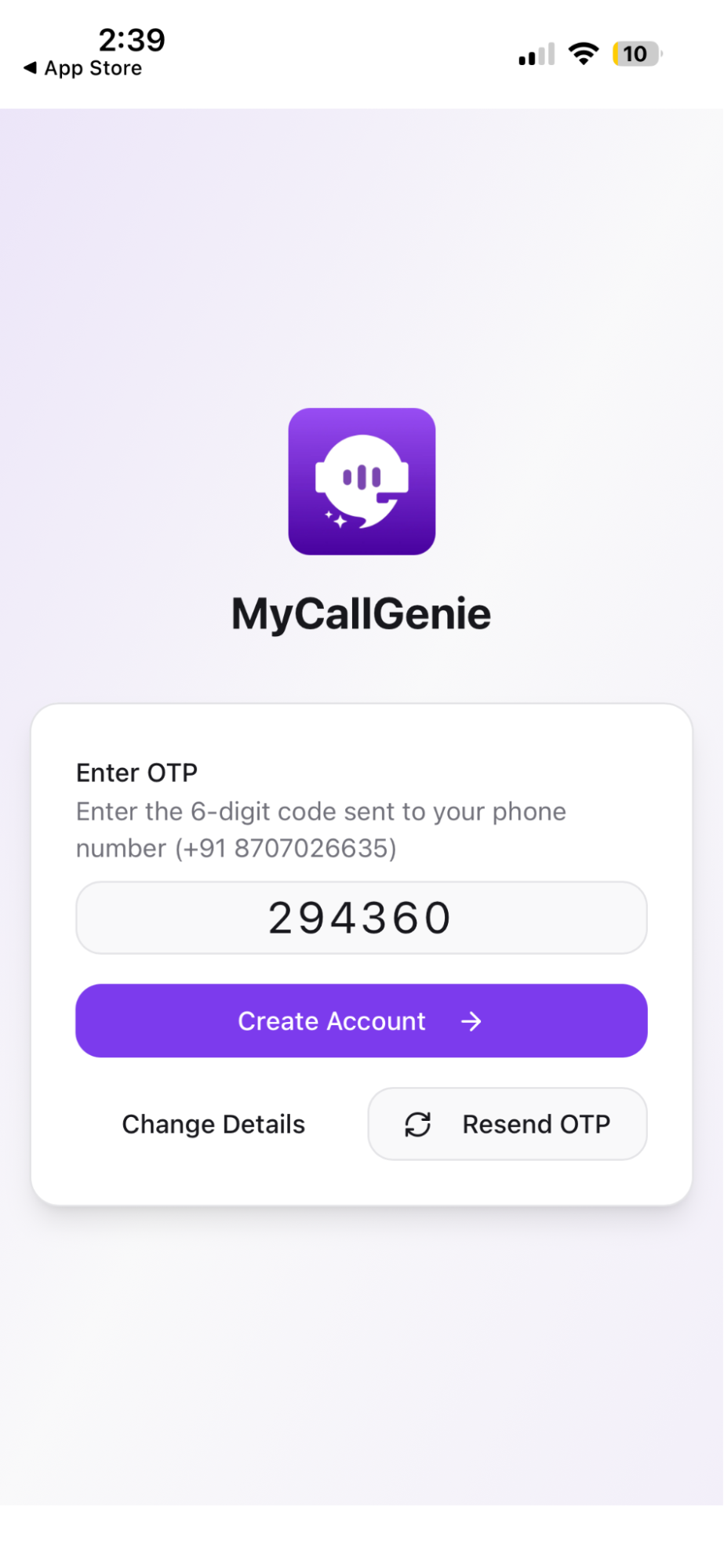
Tip: You can optionally enter a referral code before tapping Send OTP.
Step 2: Enable Smart Contact Sync
1. Sync Your Contacts
After signing up, you’ll be shown the “Enable Smart Contact Sync” screen. This allows MyCallGenie to recognise your callers by name. Tap Proceed to continue.

2. Grant Contacts Permission
iOS will prompt you to allow MyCallGenie access to your Contacts. Tap Continue on the in-app explanation, then Allow on the system dialogue. This is required for caller identification in your call logs.

Tip: If you tap “Don’t Allow,” the AI will still answer calls but won’t be able to display caller names in your dashboard.
Step 3 — Set Up the Call Dashboard
1. Activate Free Credits
You’ll land on the Call Dashboard, which prompts you to “Activate 10 Free AI Credits.” The dashboard shows your registered number and guides you through two remaining tasks: setting up call forwarding and testing the AI.

2. Configure Call Forwarding
Tap Setup Now under “Setup MyCallGenie on [your number].” This opens the Manage AI Call Handling screen, where you can choose when the AI should step in:
- When I Miss the Call — AI answers when you don’t pick up
- When I’m on Another Call — AI answers when you’re busy
- When My Phone is Unreachable — AI answers when your phone is off or out of coverage
- Always Let AI Answer — AI handles all calls

3. Enable Forwarding on the Network
Tap Setup on Network under your chosen option (e.g. “When I Miss the Call”). A bottom sheet explains that a call will be placed from your number to enable forwarding. Tap Enable Now — or manually dial the code shown (e.g. *61*08045687636#) from your registered SIM.

4. Confirm Activation
Your carrier will display a confirmation screen listing each forwarding type that was activated (Voice, Data, Fax, SMS, etc.). Tap Dismiss to return to the app.

Tip: If you see a “Failed to update call forwarding” banner, use the manual dial code shown on the setup screen and dial it from your registered SIM directly.
Step 4: Configure Your AI Agent
From the bottom navigation, tap the Settings (gear) icon to open Agent Settings. Here you can customise how your AI receptionist behaves across six areas:

1. Use Case
Choose between Business (for restaurants, clinics, salons, and services) or Personal (for personal call management). Select the option that matches how you’ll use MyCallGenie and tap Save.

2. Industry
If you selected Business, choose your industry from the list — options include Restaurants & Cafes, Healthcare, Grocery Shop, Travel Agency, Freelancers & Services, and more. Select the best match and tap Save. In this instance, we have selected Other Businesses.

3. Business Details
Enter your business name, a short description, your country, and working hours (start and end time). This helps the AI provide accurate information to callers. Tap Save.

4. Greeting Message
Set how the AI introduces itself to callers. Configure:
- Phone Usage — whether this number is used only for business or for both business and personal calls
- Languages — select the languages your AI will converse in (e.g. English, Hindi)
- AI Voice Gender — choose Female or Male
- Greeting Message — edit the default greeting text that callers will hear

5. FAQs
Add up to 5 frequently asked questions and their answers. The AI will use these to automatically respond to common caller queries. Tap Save when done.

6. Additional Information
Add any special instructions for the AI, for example, which details to collect from callers (name, contact number, nature of inquiry) and how to collect them. Ask for each item one at a time and wait for a response before moving on. Tap Save.

Step 5: Test Your Setup
1. Make a Test Call
Call your registered number from another phone, then either don’t pick up or cut the call. MyCallGenie will answer on your behalf using your configured greeting and settings.
Tip: After the test call, check the Call Dashboard for a summary of the interaction. Summaries and recordings are delivered to you after each AI-answered call.
How to Disable Call Forwarding
To stop MyCallGenie from answering calls at any time, tap Disable all Forwarding (##002#) on the Manage AI Call Handling screen, or dial the code below directly from your registered SIM: ##002#
This immediately disables all call forwarding on your number.
Pricing & Credits
MyCallGenie runs on a simple, transparent credit system:
- 1 Call = 1 Credit (~₹3 per call)
(Duration doesn’t matter)
Plans:
- Starter Plan: ₹300 for 100 credits
- Growth Plan: ₹600 for 200 credits
Credit Benefits:
- Credits never expire
- Unused credits roll over
- Buy add-ons anytime from the in-app Wallet
How to Disable MyCallGenie
Want to stop using the service?
Simply dial:
##002#
This will disable call forwarding instantly.
Troubleshooting: OTP Issues
Not receiving your OTP?
- Wait a few moments and try again
- If the issue persists, contact support via WhatsApp through the app
Who Is This For?
- Founders & small business owners handling high call volumes
- Professionals who miss calls during meetings
- Anyone tired of spam calls and interruptions
Never Miss A Lead
MyCallGenie ensures every call is answered, every message is captured, and every opportunity is within reach, without you having to pick up every time.