

Timely, relevant communication is key to driving conversions and improving customer experience. With Interakt’s Ongoing (Automatic) WhatsApp Notifications, you can trigger messages based on customer actions, traits, or specific time conditions — without any manual effort.
This guide walks you through the 4 essential steps to successfully set up automated WhatsApp campaigns on Interakt.

How to Set Up Automatic WhatsApp Notifications on Interakt
Step 1: Create Your Message
(What should be sent?)
- Select the WhatsApp template you want to send
- Add variable values (Name, Discount %, Coupon Code, etc.)
- Add fallback or constant values
- Configure dynamic URLs if applicable
Once completed, click Save.

Step 2: Define the Trigger
(When should the message be sent?)
Every ongoing campaign starts with defining the trigger condition. You can choose from three types of triggers:
1️. After a Customer Performs an Event
Use this trigger when you want to send messages based on customer actions.
Example: Order out for Delivery
If you want to send a WhatsApp reminder when someone abandons their cart:
- Select Event → Order out for Delivery

You can create similar campaigns for events like:
- Order Placed
- Order Delivered
- Payment Failed
- Signup Completed
Note: You can add multiple advanced filters to refine targeting.
2️ After a Customer Trait is Updated
Use this trigger when you want to send campaigns based on customer attributes.
Example: High-Value Mumbai Customers Offer
Suppose you want to target customers who:
- Live in Mumbai
- Have placed more than 5 orders
- Has placed an order in the past
Setup:
- Define traits: City Name and Total Order Count
- Add advanced filter: Order Placed Anytime in the Past

If all conditions are satisfied, the campaign is triggered automatically.
Note: You can add multiple advanced filters for precise segmentation.
3️ Few Minutes/Hours/Days After a Date Trait
Use this when you want to send a campaign after a specific time interval from a stored date.
Before using this trigger, ensure the customer’s date format is:
YYYY-MM-DDTHH:MM:SSZ
Example: 2024-11-05T13:15:30Z
Example: 1 Day After Demo Webinar
- Select trigger → Few mins/hrs after date defined in a customer trait
- Choose trait → Appointment Time
- Add advanced filters (e.g., New Customer Created, Country has any value)

Once the time condition is met, the campaign is triggered automatically.
Step 3: Define Customer Response Actions
(What happens after the customer replies?)
You can automate follow-up actions based on how customers respond.
⚠ To configure reply-based actions, your template must include a Quick Reply Button.
A. WhatsApp Opt-Out
You can enable opt-out in two ways:
- Add an Opt-Out Button
- Define a Typed-Out Reply (e.g., STOP)
You may also configure an acknowledgment message after opt-out.
⚠ Best Practice:
At the audience selection stage, ensure you select only customers whose ‘WhatsApp Opted’ = True.

B. Product Catalogs or Collections
You can attach:
- A full Product Collection List
- A specific Catalog Message
Trigger options:
- On Button Click
- On Typed-Out Reply
If the customer response matches the defined trigger, the catalog is sent automatically.

C. Interactive List Messages
Send structured list messages when a customer’s reply matches a trigger.
You can configure:
- Button Click trigger
- Typed-Out Reply trigger
Click Save once configured.

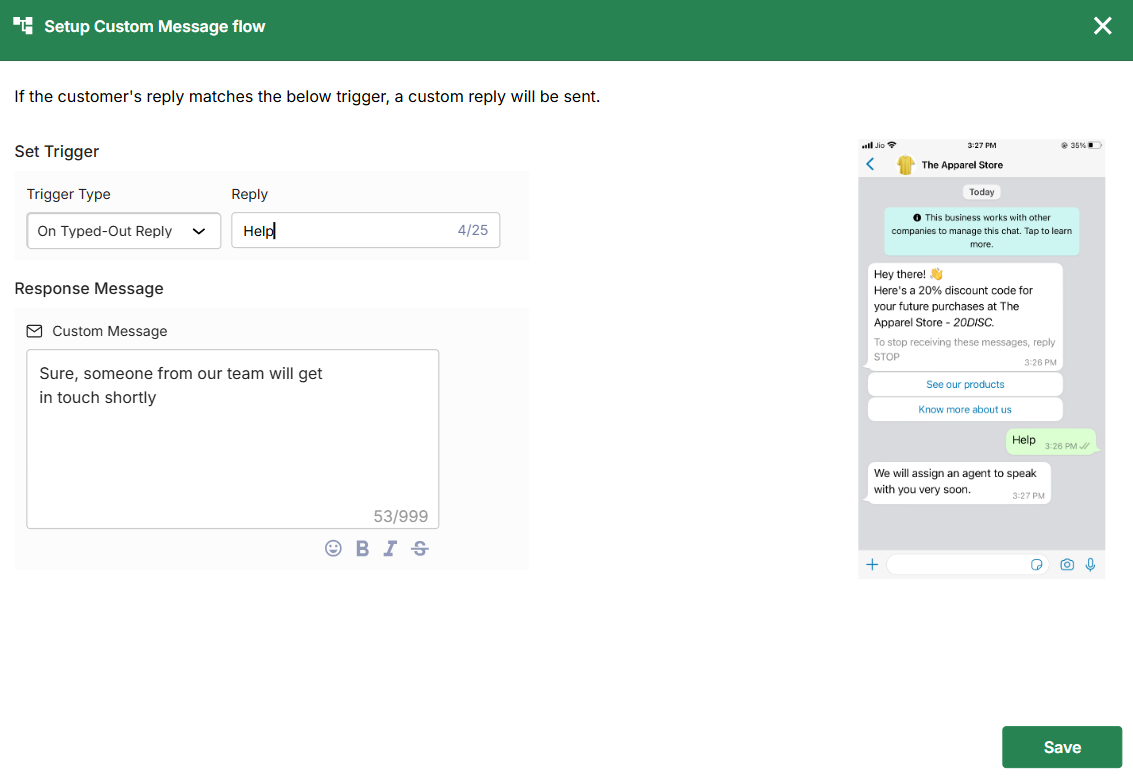
D. Custom Auto Replies (FAQs)
Set up automated responses for frequently asked questions.
Trigger options:
- Typed-Out Reply (e.g., keyword “Help”)
- Button Click
If the reply matches the defined keyword, the auto-response is sent instantly.
E. Automated Workflows
You can also trigger full workflows based on customer response.
Response types:
- On Button Click
- On Typed-Out Reply
- On Any Customer Response
Select the workflow from your Workflow Library >> Click Done >> Save.

Step 4: Schedule & Set Live
If you want the campaign to start running right away:
- Select Send Immediately
- Since this is an ongoing campaign, you must also define the “Stop Sending” timeline.
You can choose:
- Never – The campaign will continue running indefinitely.
- Custom Date – The campaign will automatically stop on the specified date.
Once configured, click Done.

Schedule for a Custom Date & Time
If you want the campaign to begin at a later time:
- Define the Start Sending date and time.
- Set the Stop Sending timeline (either Never or a Custom Date).
This ensures your campaign runs only within the defined timeframe.
After selecting the desired schedule, click Done, review your audience count, and then click Set Live to activate the campaign.

How to Pass Events to Interakt
If Using a Custom Website/App/CRM
Step 1: Use the User Track API to create the customer (if not already present).
Step 2: Use the Event Track API to pass event details.
Example:
When a customer places an order, send an event:
- Event Name: Order Placed
- Event Traits: Order number, value, items, etc.
Platform Integrations
- Shopify: Events sync automatically once installed.
- WooCommerce: Configure integration to enable event tracking.
- Facebook Leads / Zoho / Other Tools: Submit integration request to set it up.
- Google Sheets Integration: Can also be used to create events.
How to Add or Update Customer Traits
You can update customer traits via:
- User Track API
- CSV Upload
Automatic WhatsApp Notifications on Interakt allow you to engage customers at the right moment, whether it’s recovering abandoned carts, rewarding loyal customers, following up after webinars, or answering FAQs instantly.
By combining event-based triggers, intelligent segmentation, personalized templates, and automated workflows, you can build powerful, always-on WhatsApp journeys that drive conversions while maintaining a seamless customer experience.
For more detailed guides and advanced configurations, explore the full Interakt Knowledge Base.