

Managing customer relationships effectively starts with a well-organized contact list. Interakt’s new Contacts Hub makes it easy to take the next steps across sales, marketing, and support.
Here’s a step-by-step guide to exporting your contacts:
1. Navigate to the Contacts Hub
Log in to your Interakt account and go to the Contacts Hub tab.

2. Select the Contacts
Choose the contacts you want to export by clicking the checkbox on the extreme left side of each contact row.
You can select individual contacts or multiple contacts at once.

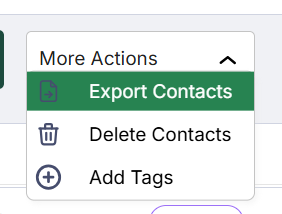
3. Click on “More Actions”
Once you’ve selected the contacts, you’ll see a “More Actions” button on the right-hand side of the screen.

4. Choose “Export Contacts.”
Click on “Export Contacts” from the available options.
After clicking, you’ll see a green confirmation alert on your screen that says:
“Report will be emailed to [email protected].”

5. Download the CSV File
You will receive an email at your registered email address.
Open the email and click on the provided link to download the CSV file. The file will automatically be saved to your device.

That’s it! Your contacts are now successfully exported and ready for further use.