

Managing customer relationships effectively starts with a well-organized contact list. Interakt’s Contacts Hub helps you segment and organize your audience effortlessly using tags, making it easier to personalize sales, marketing, and support efforts.
Here’s a step-by-step guide to tagging your contacts on Interakt:
1. Navigate to the Contacts Hub
Log in to your Interakt account and go to the Contacts Hub tab.

2. Select the Contacts
Choose the contacts you want to tag by clicking the checkbox on the extreme left side of each contact row.
You can select:
- A single contact
- Multiple contacts at once

3. Click on “More Actions”
Once you’ve selected the contacts, click on the “More Actions” button located on the right-hand side of the screen.

4. Choose “Add Tag.”
From the dropdown menu, select “Add Tag.”

5. Assign Tags
A pop-up window will appear on your screen.
For example, if you selected 14 contacts, the pop-up will display:
“Assign Tags to 14 Users.”
You now have two options:
- Select an existing tag by typing its name in the Search Tags
- bar.Create a new tag by clicking on “+ Create New Tag.”

6. Create a New Tag (Optional)
If you choose to create a new tag:
- Click on “+ Create New Tag.”
- Enter the name you want to assign to the tag.
- Click on the green tick button to save it.
The newly created tag will immediately be assigned to the selected contacts.

The tag will be added to the selected users as you can see in the below screenshot.

That’s it! Your selected contacts are now successfully tagged and organized for smarter segmentation and targeted communication.
Add Tags to customers via Inbox
Step 1: Select the Customer
Navigate to your Inbox and open the specific customer chat for the person you want to tag.

Step 2: Locate the Tags Section
Look at the right-side pane (where the customer profile details are displayed). You will see a dedicated section labeled Tags.
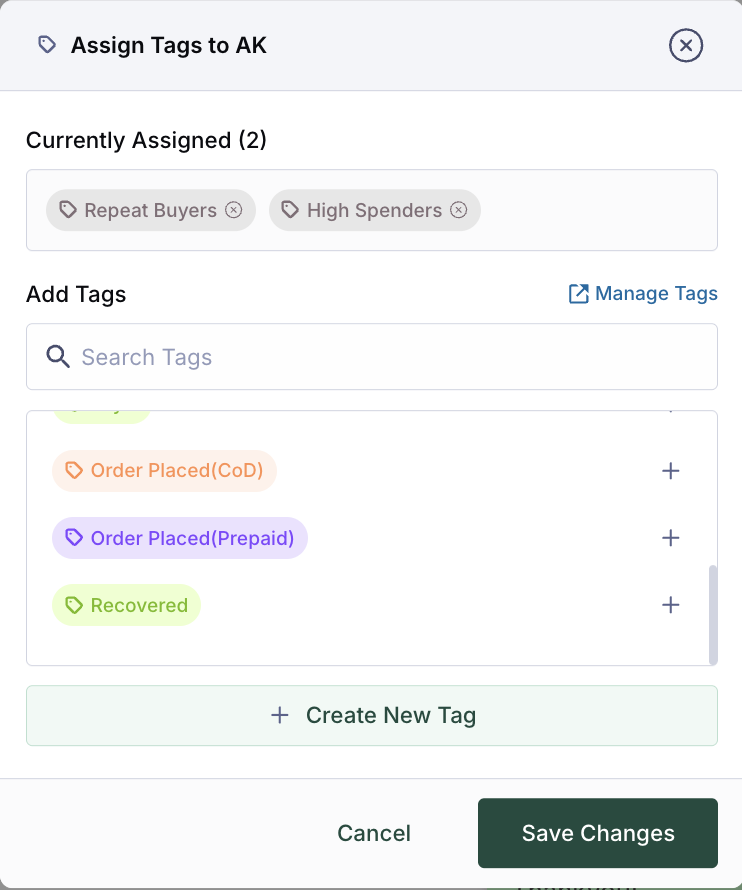
Step 3: Edit and Select Tags
Click on the “Edit” button within the Tags section. From here, you have two options:
- Select Existing Tags: Choose from the list of tags you have already created.
- Create New Tags: Type a new name into the field to create a brand-new tag and attach it instantly.

Step 4: Save Your Changes
Once you have selected all the relevant tags, click “Save Changes.” The tags will now be successfully attached to the contact.
Add Tags via CSV Bulk Upload
Step 1: Prepare Your CSV File
Before uploading, ensure your data is organized in a CSV (Comma Separated Values) format. Your file should include essential headers such as:
- Full Name
- Phone Number (including the Country Code)
- Email Address
- Any other custom attributes you wish to track

Step 2: Upload the File and Manage Tags
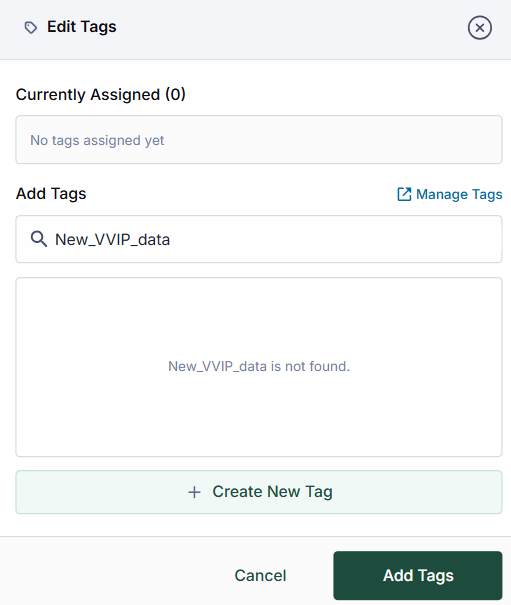
Navigate to the upload section and select your prepared CSV. At this stage, you will need to categorize these contacts using Tags:
Default Tags: Choose from the pre-existing list of common tags.
Custom Tags: Click on “+See More” to search for an existing custom tag or create an entirely new one. A pop-up box will appear, allowing you to type and save your unique identifiers.

Step 3: Confirm the Upload
After verifying that all attributes are mapped accurately to their respective categories, click Confirm. Your contacts will now be updated in the system with the new attributes and tags.
Tip: Always double-check that your phone numbers include the “+” sign and country code to prevent upload errors.
Add Tags via Interakt Public Track API
The user track API allows customers to record the attributes specific to the user. They can record specific user properties (attributes) such as user id, email id, phone number, name etc. Customers can call the user track API when a new user account is created on their website/app/CRM. For example:
For adding a new user to your Interakt dashboard, the following payload could be sent in the API call: