

Managing a large list of contacts can be overwhelming. To help businesses work more efficiently, Interakt’s Contact Hub page now allows you to search, filter, and perform actions with ease.
This guide will walk you through how to:
1.Select multiple contacts and perform bulk actions
2.Search for contacts quickly
3.Sort contacts based on creation or closure dates
4.Filter contacts using different criteria
Selecting Bulk Contacts and Performing Actions
You can now select multiple contacts immediately and perform certain actions.
How to Select Contacts
1.Use the checkbox next to each contact’s name to select it.
2.To select all contacts on a page, click the checkbox in the header row.
3,If you switch pages and select more contacts, they will be added to your total selection.
4.The total number of selected contacts is displayed at the bottom (e.g., “8 out of 1234 contacts selected”).
5.Once you select contacts, the Send Notifications button and options in the More Actions dropdown will become available.
Tip: If you want to unselect all contacts, simply uncheck the header checkbox.

Send Notifications
Once you have selected a contact, you can choose to send a notification from the Contact Hub page.
1.Select contact(s)
2.Click on the Send Notifications button

3.You will land on the Create Campaign page
4.Follow all the steps, and you are ready to send a notification campaign

Searching for Contacts
You can now search for any contact quickly using the search bar.
How to Search:
1.Enter the contact’s name, email, phone number, lead source, or any other available parameter.
2.The search will filter results in real-time.
3.No changes have been made to how search works—it remains fast and efficient.
Example:
Searching for “John Doe” will instantly show all contacts with that name.
Filter Contacts
1.Click on the filter icon at the top
2.Here you can filter your contacts based on two parameters – Tags or Traits/Events
Example:
Select Segment: Click on “Select Segment” and choose Create New.
Apply Filters: Add conditions to define your group.
- Example: To target non-buyers who recently left items in their cart, filter for the event Abandoned Checkout (within 30 days) AND Total Order Count = 0.
Save: Give your segment a name to reuse it later.


Note – Super Admins can access all leads across teams, while those who have been assigned the role of Team Lead can view only their team’s leads. |
More Actions
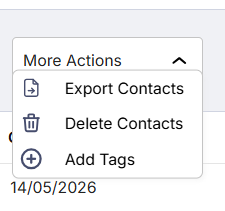
1. Export Contacts
You can export all contacts by clicking on the button or just select the contacts you want to export. The list will be emailed on your registered email id.
2. Delete Contacts
Select the contacts you want to delete and click on confirm.

3. Add Tags
- Select the contacts
- Click on ‘Add Tags’
- Either select one from the list or create a new one.

Conclusion
With these improvements, managing your contacts in Interakt is now faster and more efficient. You can search, filter, and take actions seamlessly, making it easier to handle sales, marketing, and customer support workflows.