

You can now get your customers to reach out to you easily by adding a responsive WhatsApp chat widget to your website. In this article, we’ll show you how to customize and install your chat widget.
Steps to Customize Your Widget on Interakt
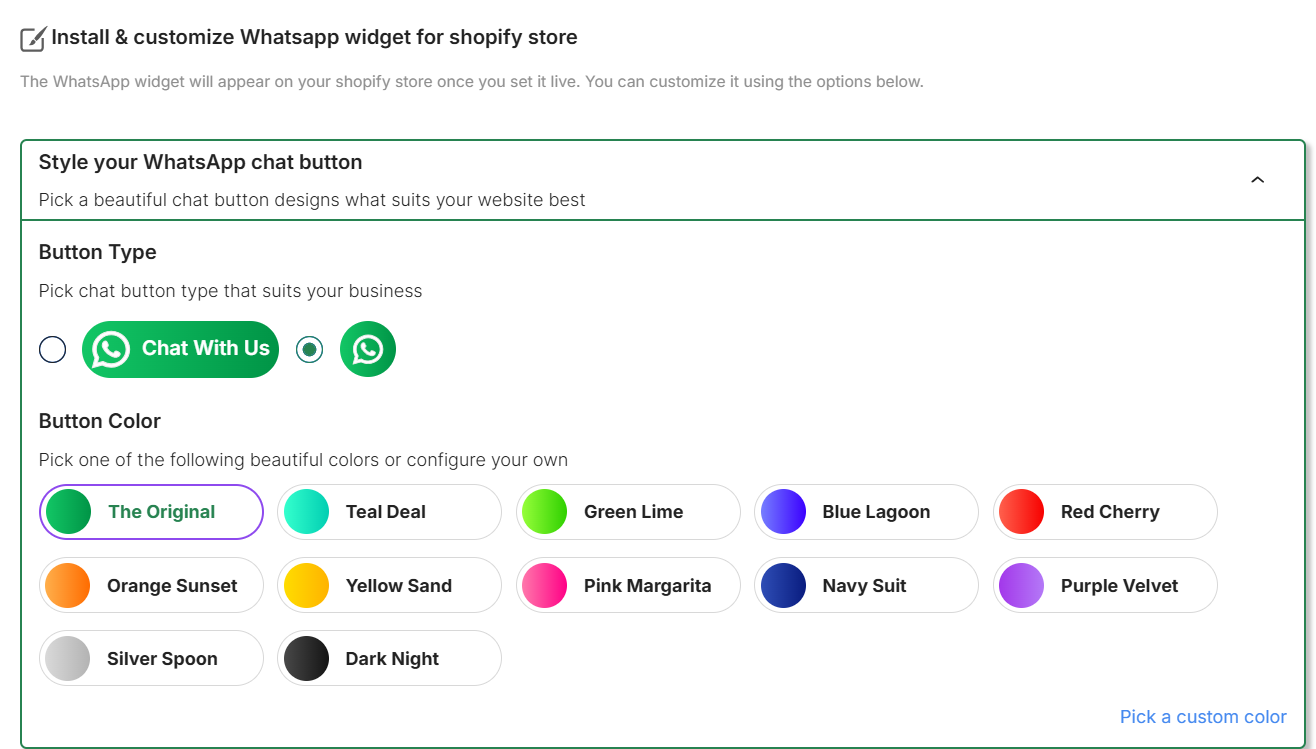
1. Style your Button: Log in to your Interakt account and go to the Widget section.

2. In the first tab, choose your widget style, text, and brand colors.
3. Design Your Message: Select an image that describes your business or choose to have no image at all.

4. Set a Welcome Message: Create a message that visitors see when they click the widget.

5. Adjust Position: Configure how the widget appears on Desktop vs. Mobile (Launcher position, side, and bottom spacing).

6. Configure API & Trigger: Add your WABA API number and a pre-configured message that triggers once the customer clicks “Start Chat.” Click Save Changes.

Installation for Non-Shopify Websites
- Once you have customized the widget and saved the changes. Go to the Install button.
- Click on the Install button on the left-hand sidebar.
- Copy the provided code snippet.
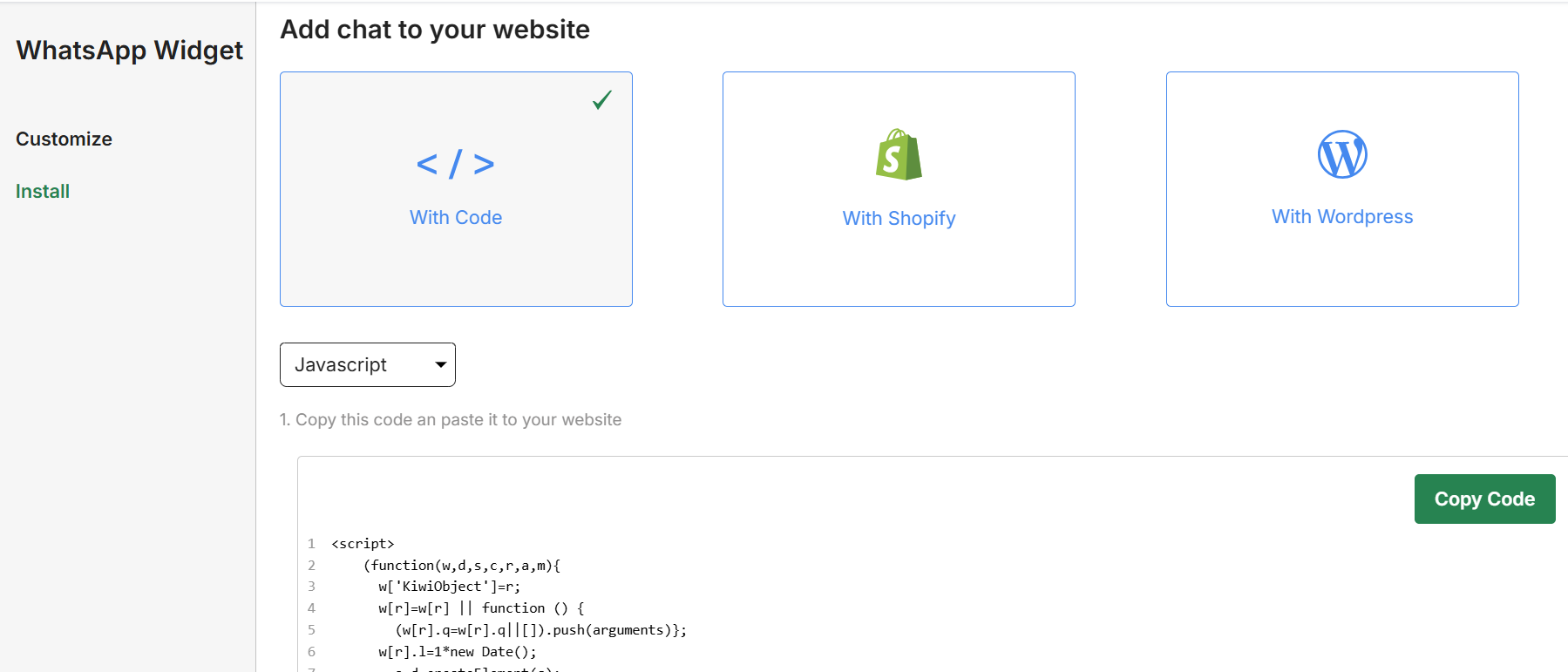
4. Paste the code into the <head> or <body> section of your website’s HTML.
For Shopify Merchants
If you are using Shopify, you do not need to copy-paste any code. The activation process depends on which Interakt app you are using for billing:
Method 1: If your billing is via the Shopify Marketing App
For merchants using the Marketing app, you must enable the widget through Shopify’s Theme Editor using App Embeds.
- Open Shopify Admin: Go to Online Store > Themes.
- Customize: Click the Customize button on your live theme.
- App Embeds: On the left-side toolbar, click the App Embeds icon.
- Enable Interakt: Locate the ‘Interakt WhatsApp Widget’ and toggle it ON.
- Save: Click Save at the top right. Your widget is now live!
Method 2: If your billing is via the Shopify Sales App
If you are using the Sales app, the process is even simpler:
- Complete the customization steps in the Interakt Widget section.
- Simply click the “Set Live” button within the Interakt dashboard.
- The widget will automatically be injected into your Shopify store without further configuration.