
Overview
The Google Sheets integration lets you turn any spreadsheet into a live trigger for an Interakt WhatsApp campaign. Instead of manually uploading a contact list every time you want to message someone, you connect a Google Sheet once — Interakt then watches it and automatically sends your WhatsApp template message whenever the condition you've set is met.
This is especially useful for use cases like:
- Appointment or booking reminders (send a message before or on the appointment date/time in the sheet)
- Lead / order intake sheets where every new row should trigger a WhatsApp message
- Renewal, subscription, or follow-up reminders tied to a date column
- Any workflow where your source of truth already lives in a spreadsheet
Two ways to trigger a campaign from Google Sheets
| Trigger type | What it does |
|---|---|
| New row added | Fires whenever a new row is added anywhere in the connected worksheet. Interakt checks the sheet on a set polling frequency (e.g. every 15 minutes). |
| Date in column | Fires based on a date/date-time value in a column you choose — either a set offset Before/After that date-time, or on the Exact Date at a chosen execution time. |
Prerequisites
- A verified, connected WhatsApp Business number on Interakt.
- A Google account with edit access to the Google Sheet you want to use.
- An approved WhatsApp message template you want to send (create and get this approved beforehand from Campaigns → Create Template).
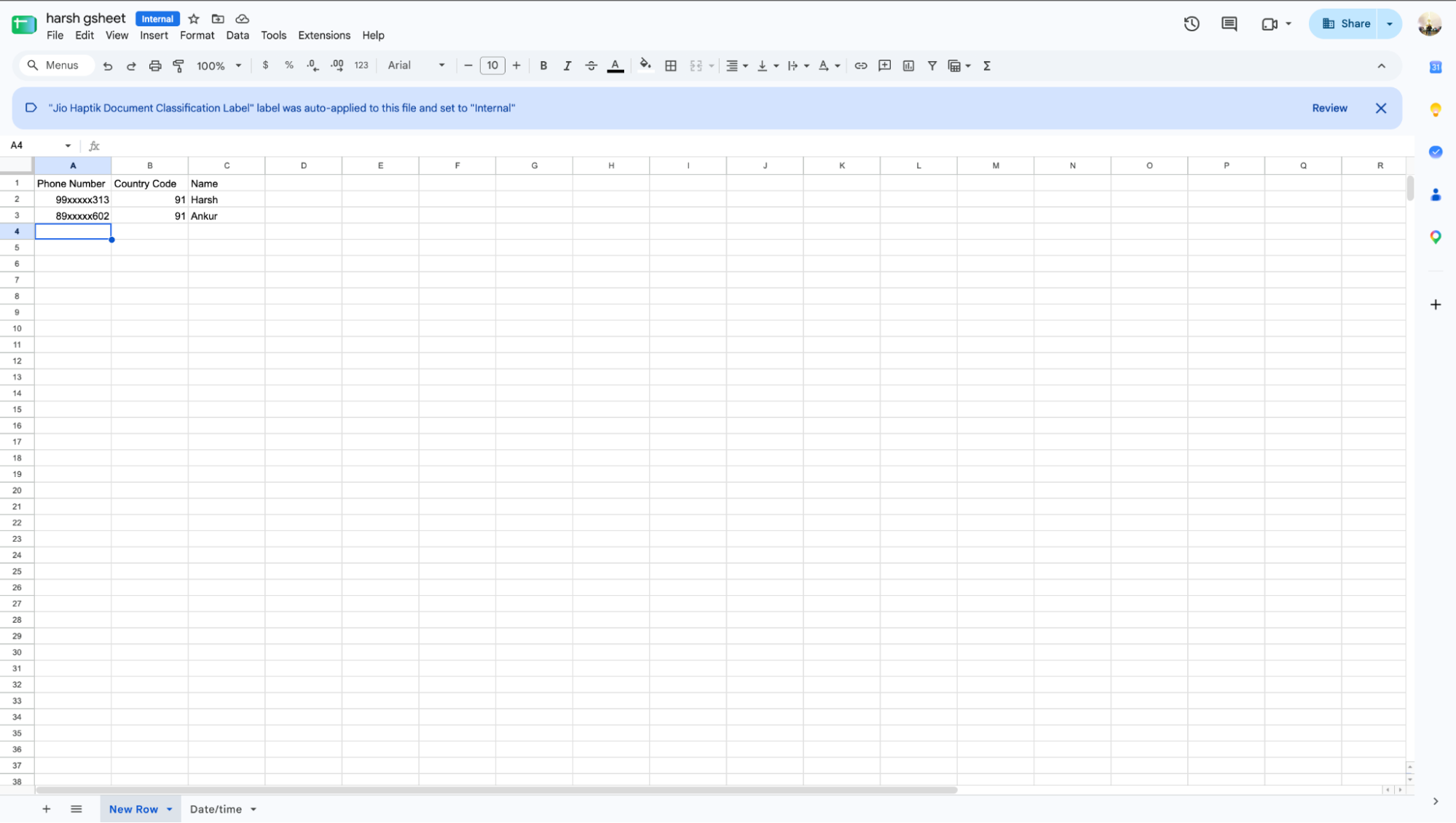
- A Google Sheet with at least: a phone number column (or separate phone number + country code columns), and — if you plan to use the Date in column trigger — a date or date-time column.
| Note: Keep column headers in row 1 of your sheet exactly as you want them to appear while mapping — Interakt reads these headers to let you map columns to your phone number and message template fields. |
Step 1: Create an Ongoing Campaign
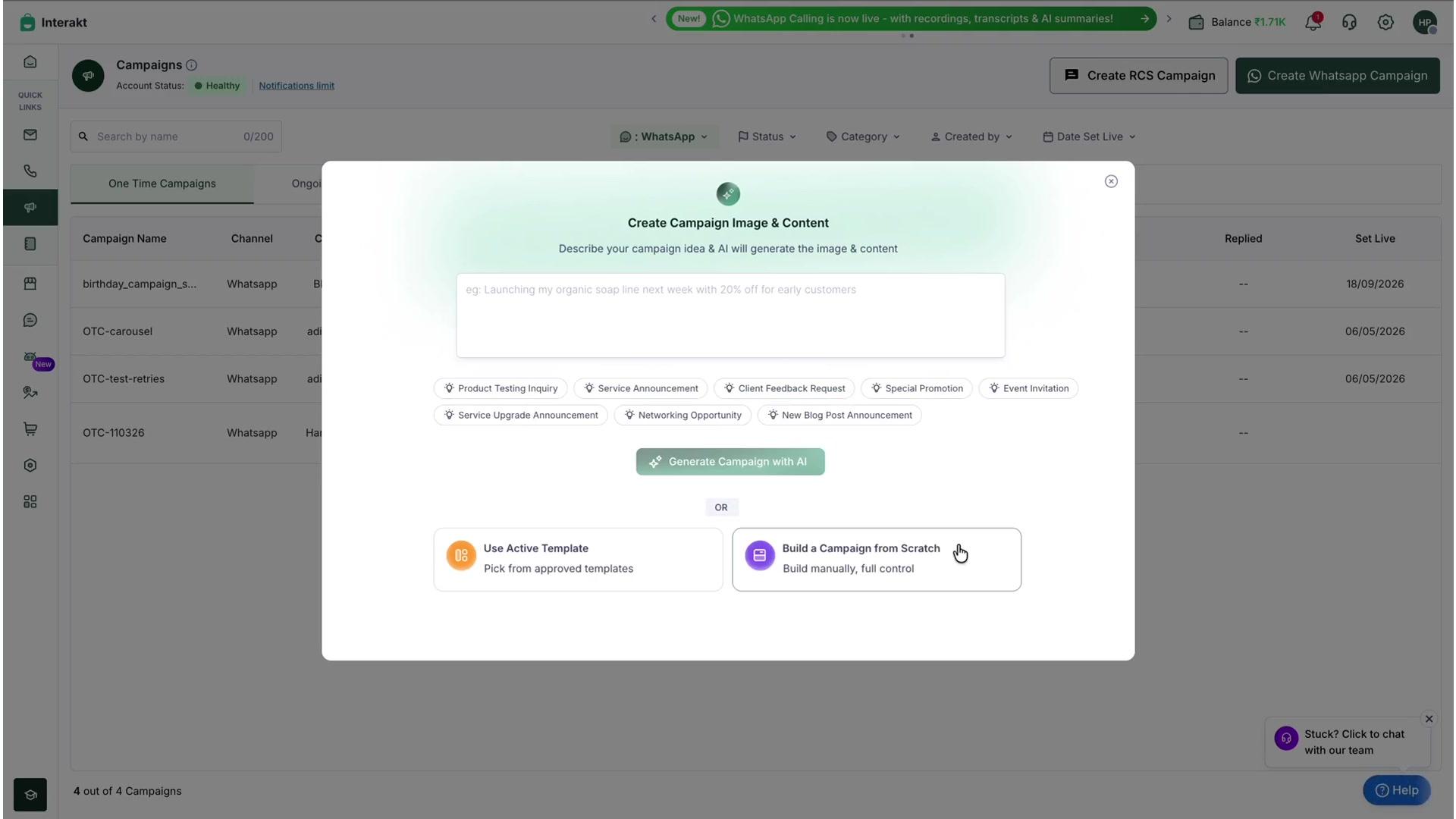
- Go to Campaigns from the left sidebar, and click Create WhatsApp Campaign.
- In the campaign creation pop-up, choose Build a Campaign from Scratch (or generate one with AI, if you prefer).
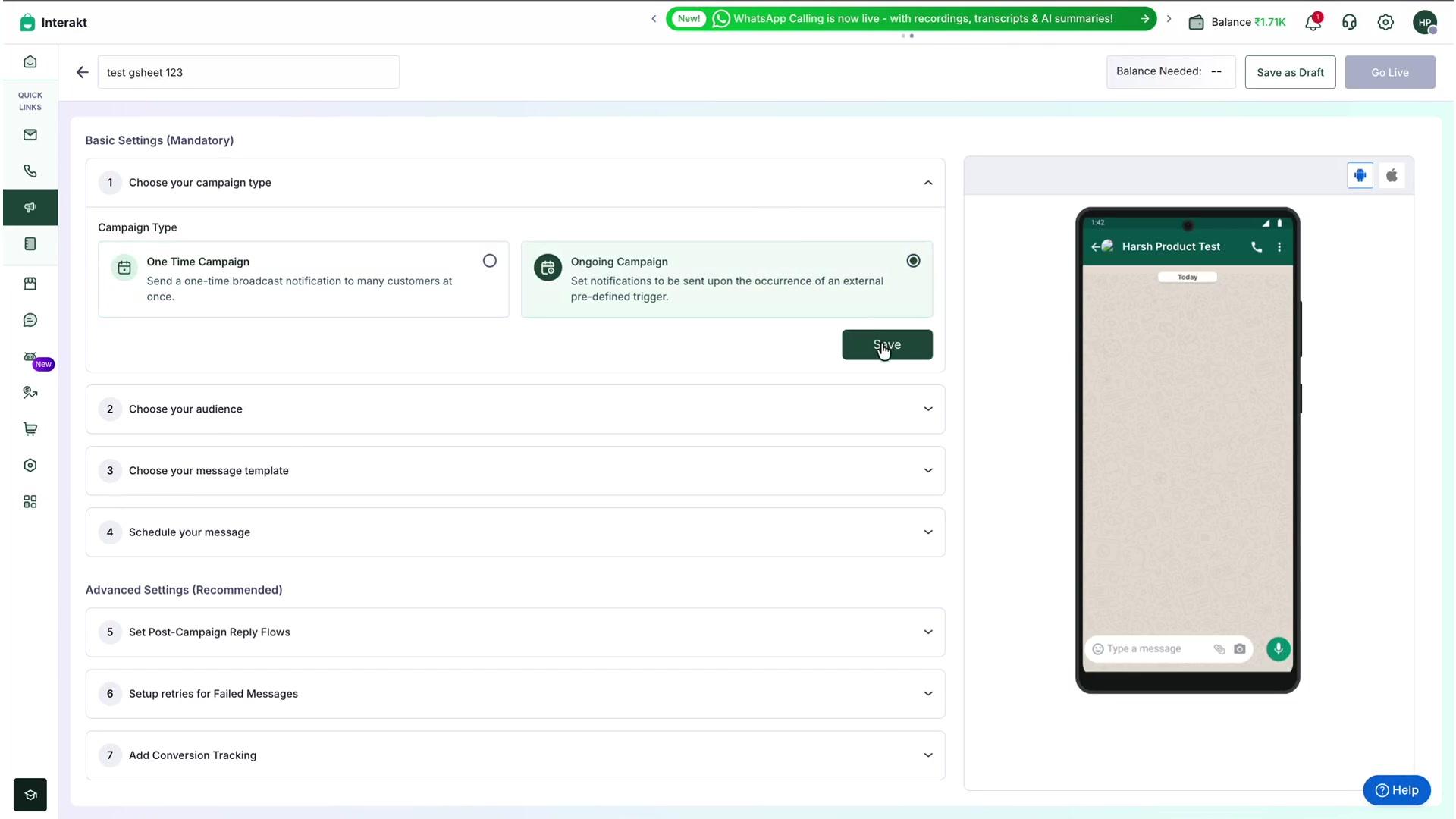
- Enter a Campaign Name at the top.
- Under 1. Choose your campaign type, select Ongoing Campaign — this is what enables trigger-based sending, including Google Sheets. (One Time Campaign is only for a single broadcast blast.)
- Click Save.
Step 2: Add the Google Sheet Trigger
Open section 2. Choose your audience → Add Trigger. You'll see four trigger options: Customer does an event, Customer field updated, After the date in a customer field, and Google Sheet.
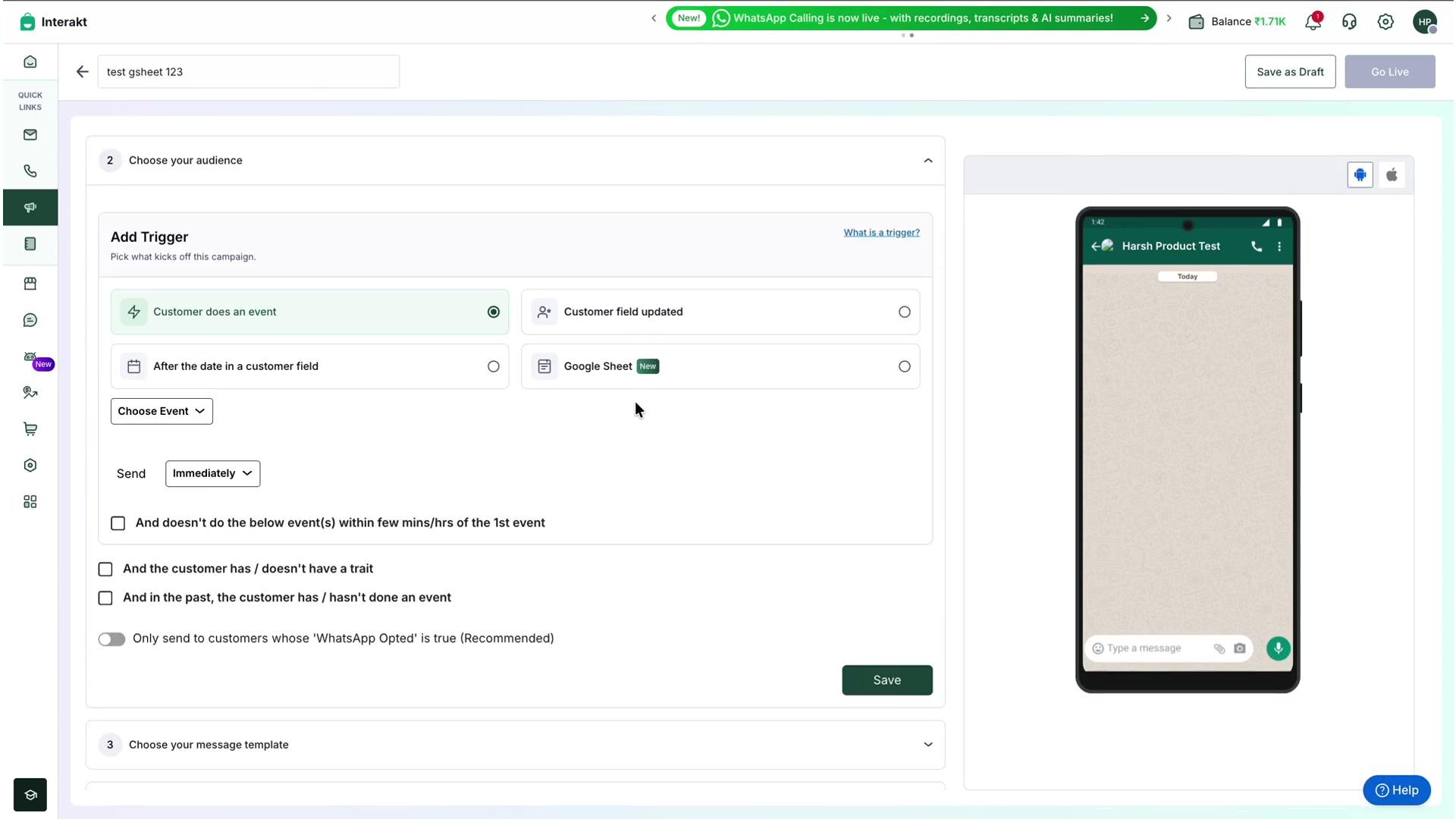
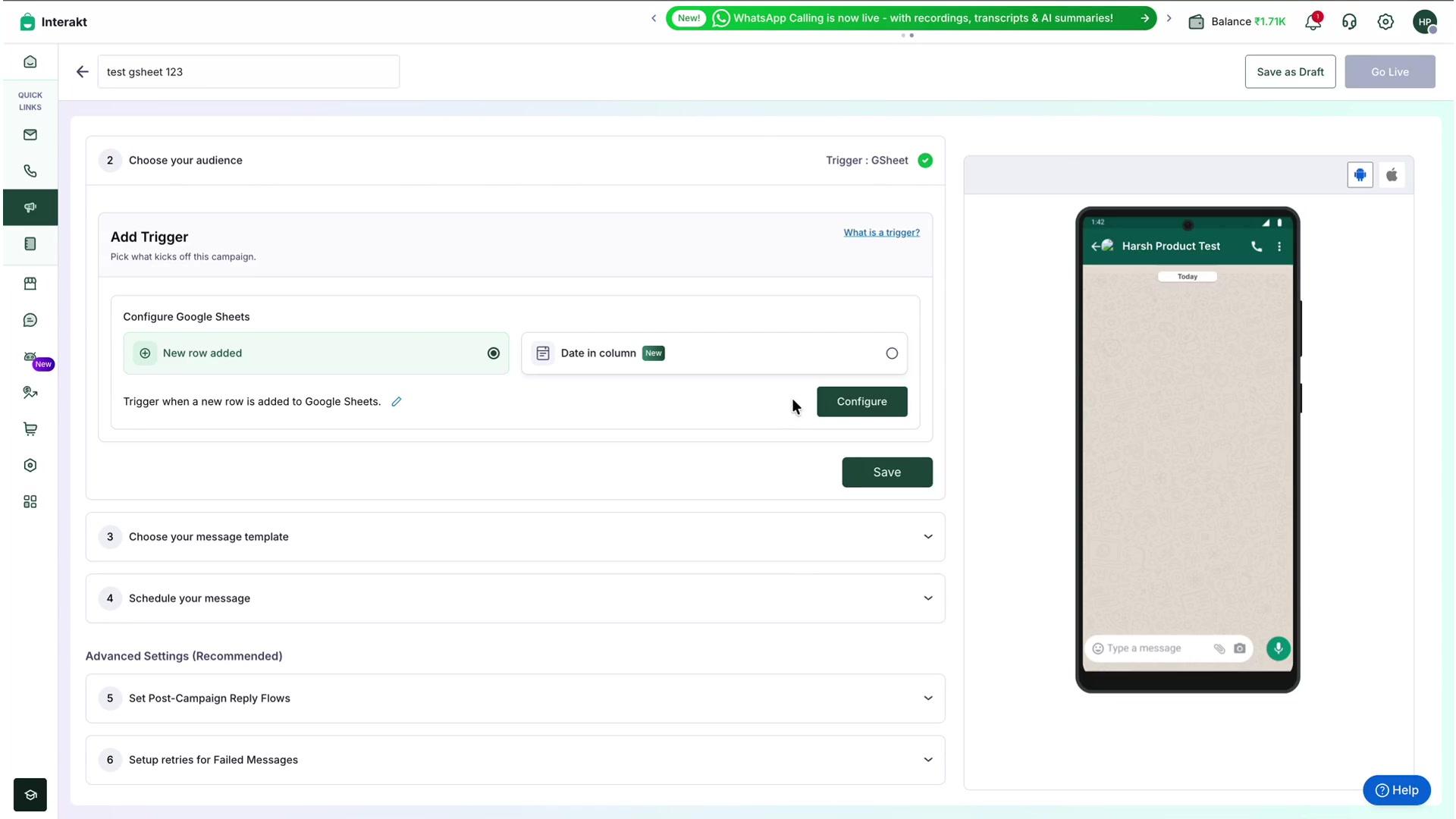
Select Google Sheet. Two sub-options appear under Configure Google Sheets:
- New row added — trigger when a new row is added to the sheet
- Date in column — trigger based on a date/time column in the sheet
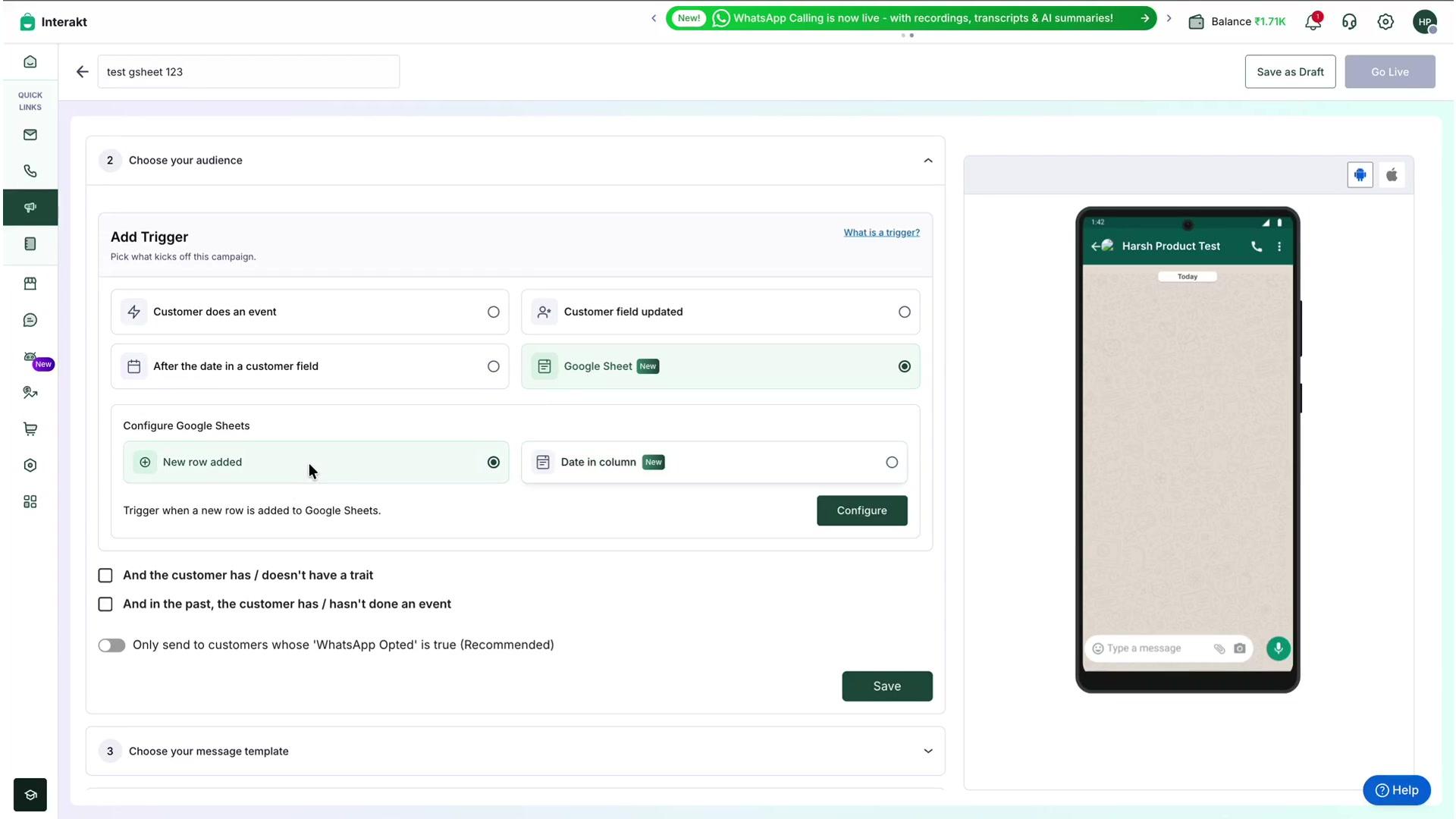
Pick whichever sub-option matches your use case, then click Configure to connect and set up your sheet. Both sub-options walk you through the same 4-step wizard: Gmail Connection → Select Spreadsheet → Map Phone Number → Set Trigger.
Step 3: Configure the Google Sheet
3.1 Connect your Google account
The wizard first asks you to connect a Google account. Click Sign in with Google, choose the account that owns (or has edit access to) your sheet, and allow Interakt to view and edit spreadsheets. Interakt only accesses the specific spreadsheet you select in the next step — not your entire Drive.
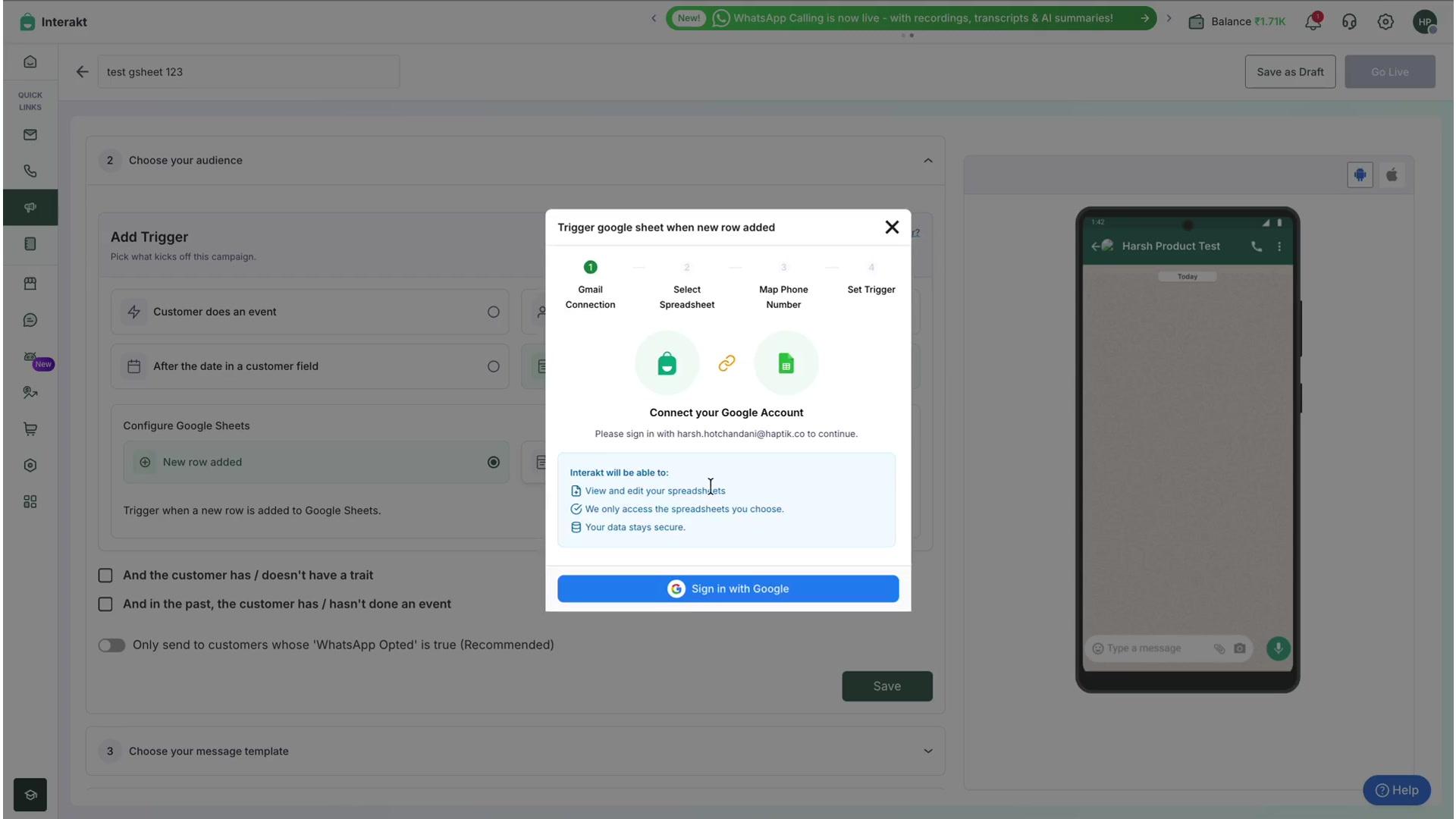
| Tip: If you've already connected a Google account in an earlier campaign, the wizard will show it as already connected and let you reuse it, or connect a different one via "Use a different account". |
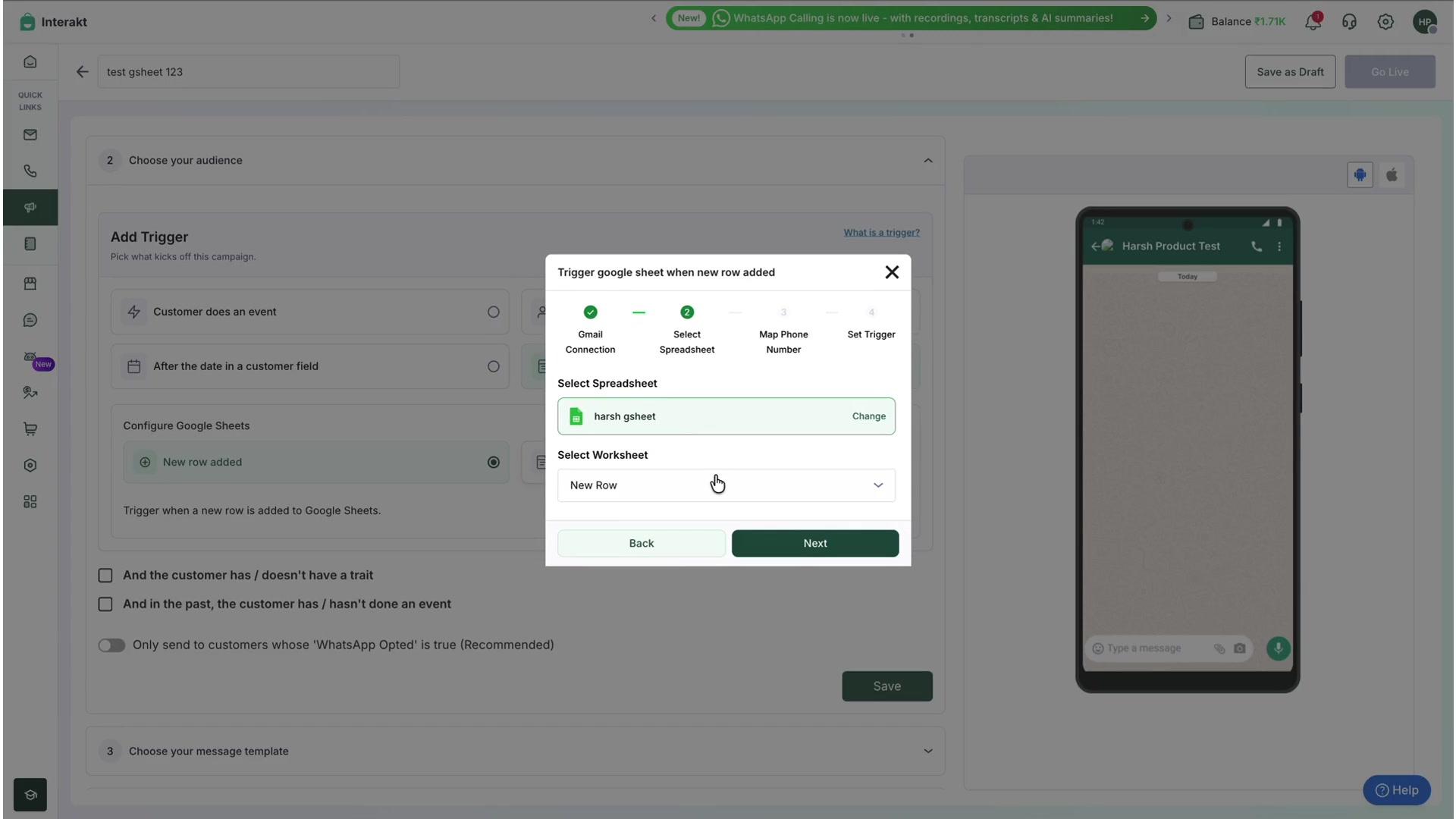
3.2 Select your spreadsheet and worksheet
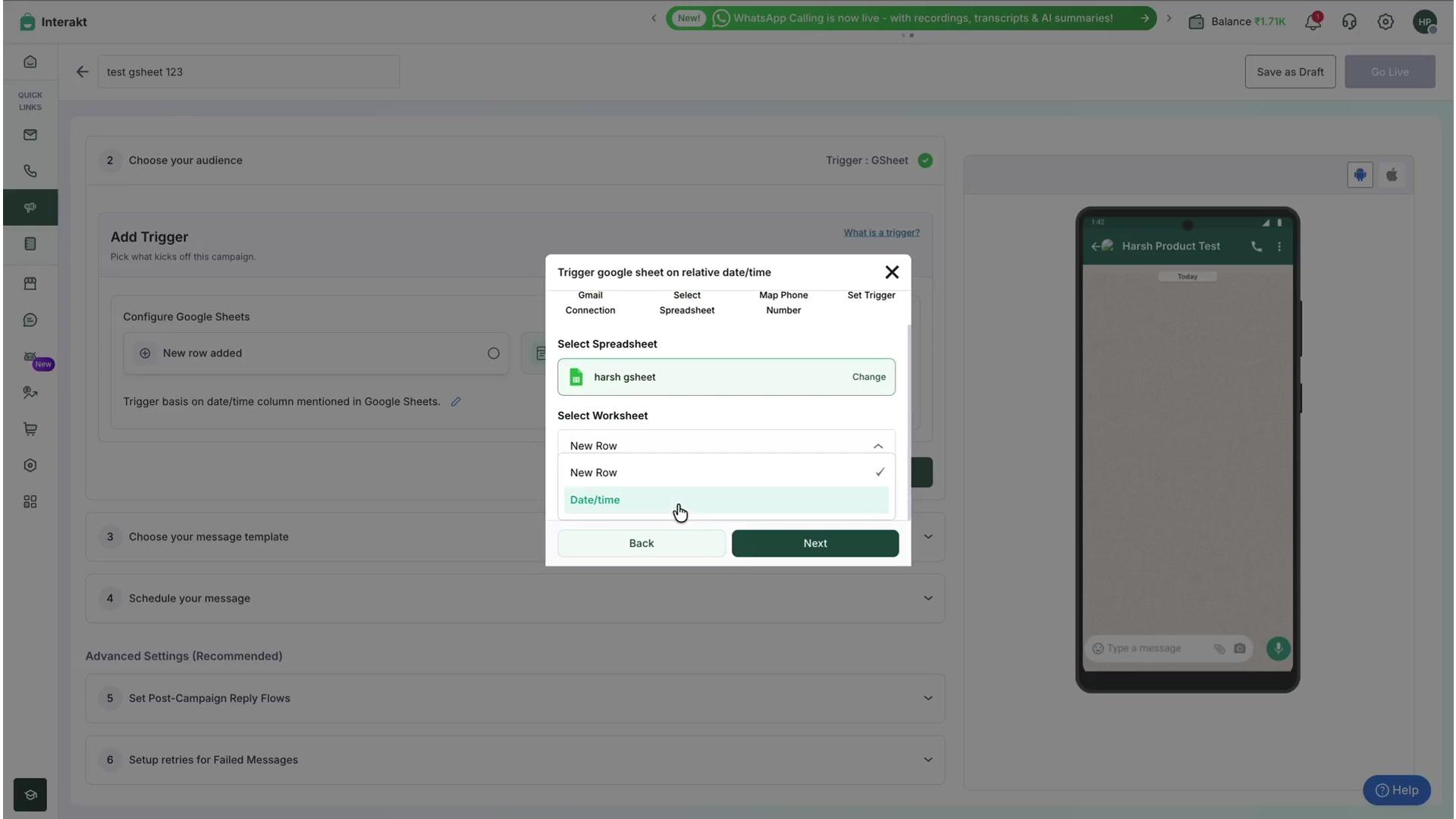
Choose the Spreadsheet from your connected Google Drive, then pick the specific Worksheet (tab) inside it that Interakt should watch. You can keep separate tabs in the same spreadsheet for different trigger types — for example, a "New Row" tab and a "Date/time" tab.
3.3 Map the phone number
Tell Interakt which column(s) hold the recipient's WhatsApp number. There are two formats to choose from:
- Phone Number — a single column with the full number including country code, e.g. +919876543210.
- Country Code + Phone Number — two separate columns, one for just the number and one for the country code.
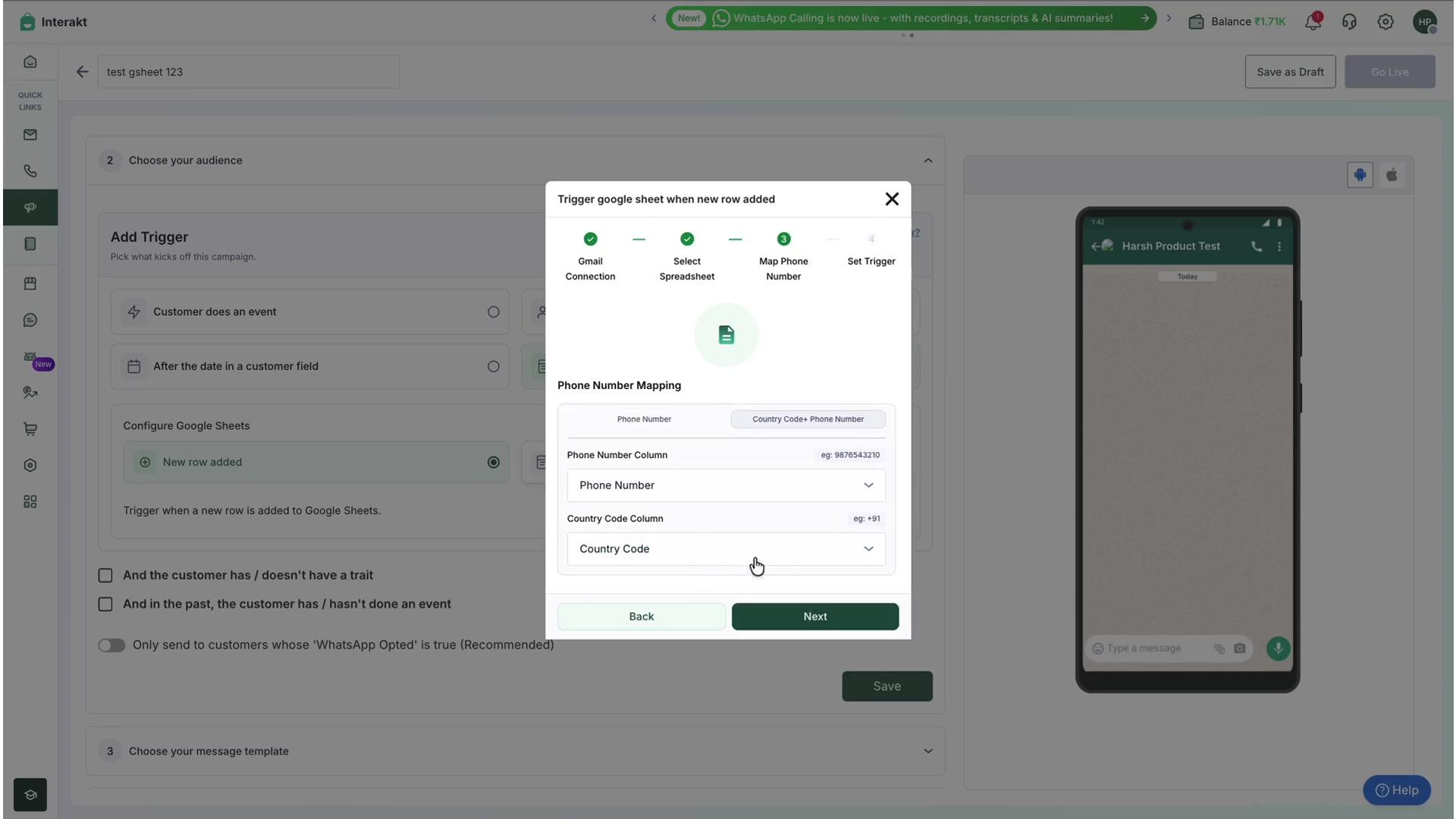
Click Next once mapped.
3.4 Set the trigger timing
This last step differs depending on which sub-option you picked in Step 2.
A. If you chose "New row added"
Set how often Interakt should poll the sheet for new rows — for example, Every 15 Minutes. On every check, the system reads all rows and sends messages for entries it hasn't processed yet.
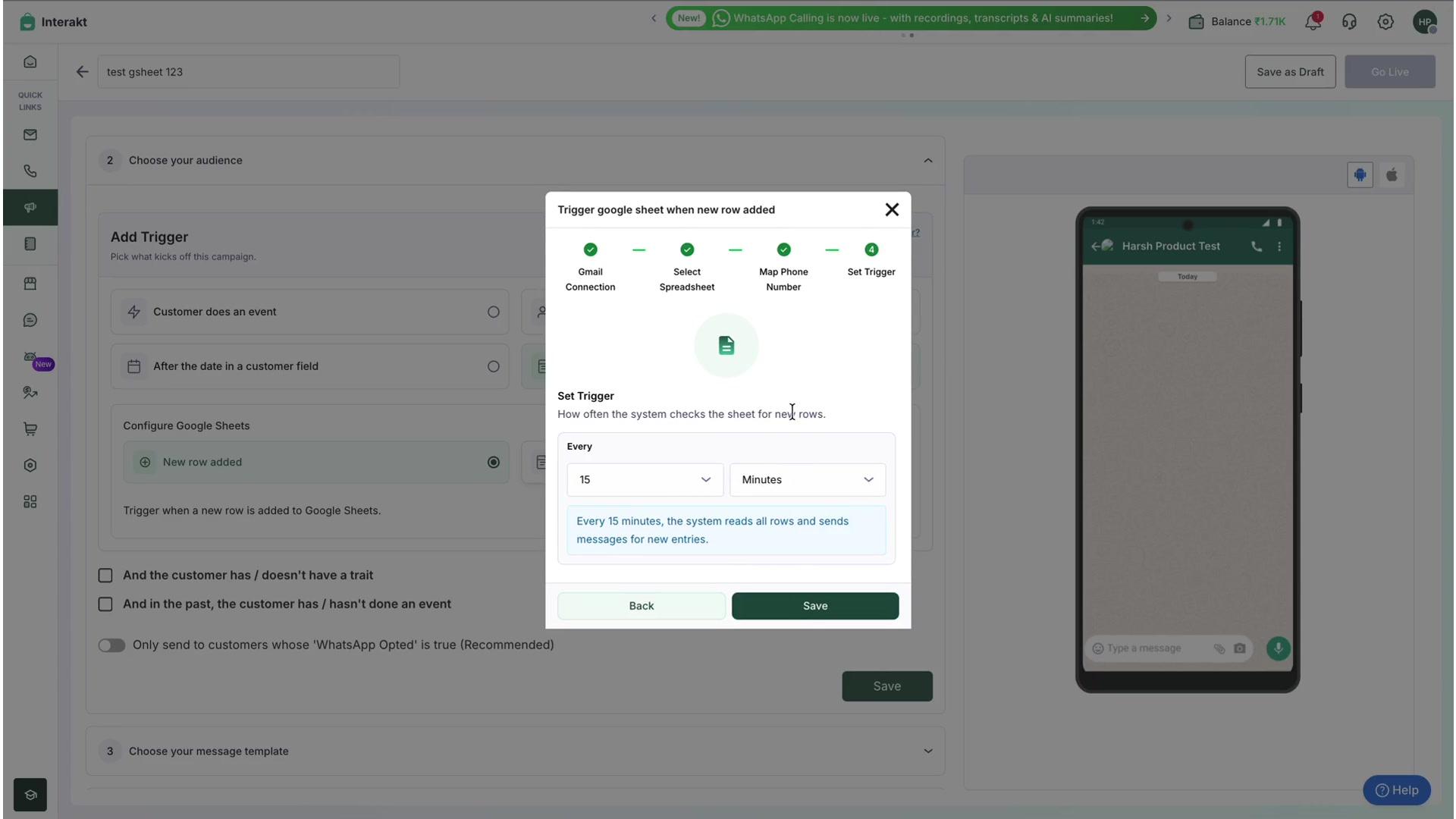
Click Save to finish. Back on the campaign screen, the trigger now shows a green Trigger: GSheet checkmark.
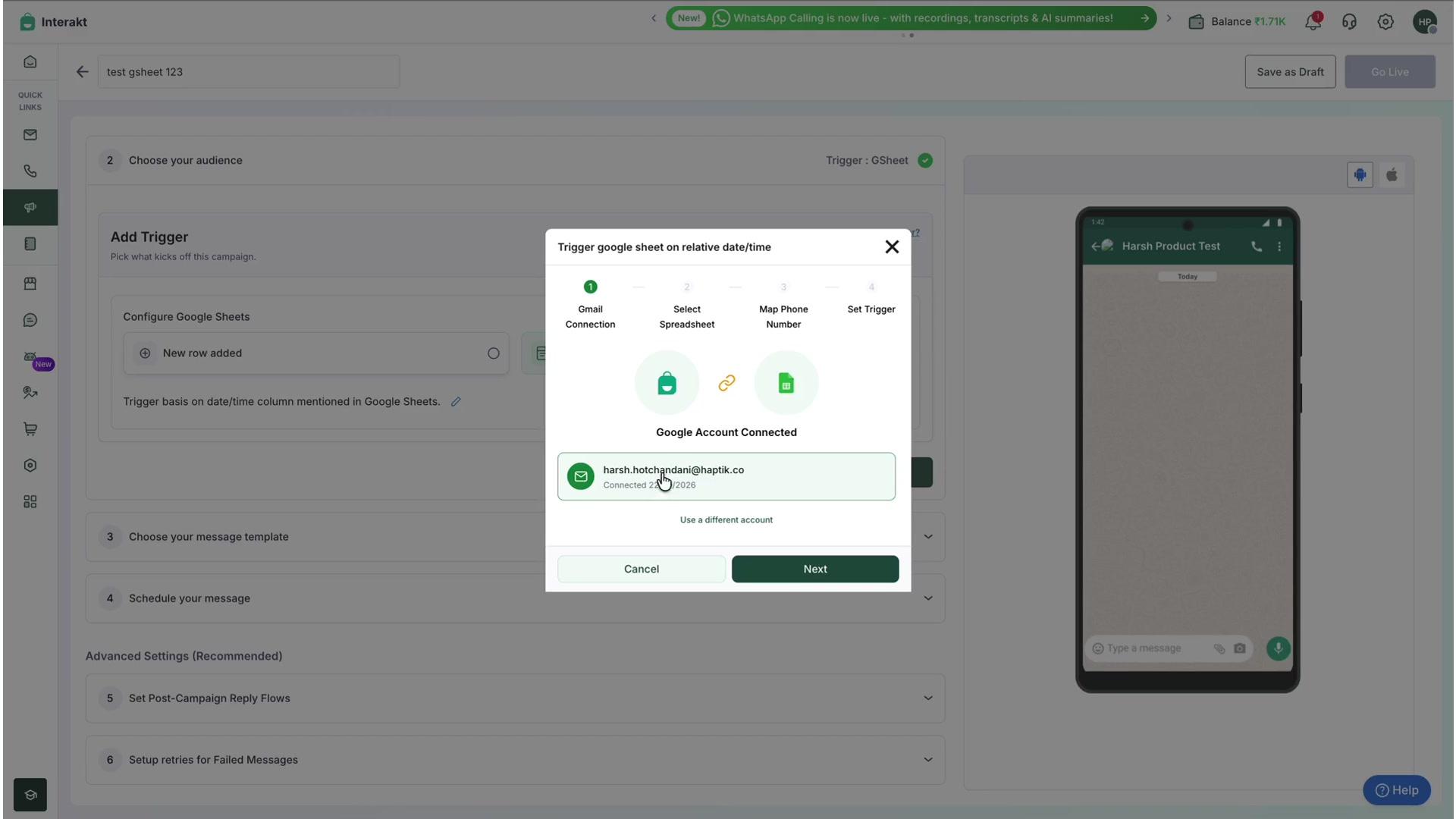
B. If you chose "Date in column"
If a Google account is already connected from a previous setup, the wizard shows it as connected — just confirm and continue through Select Spreadsheet and Map Phone Number as described above.
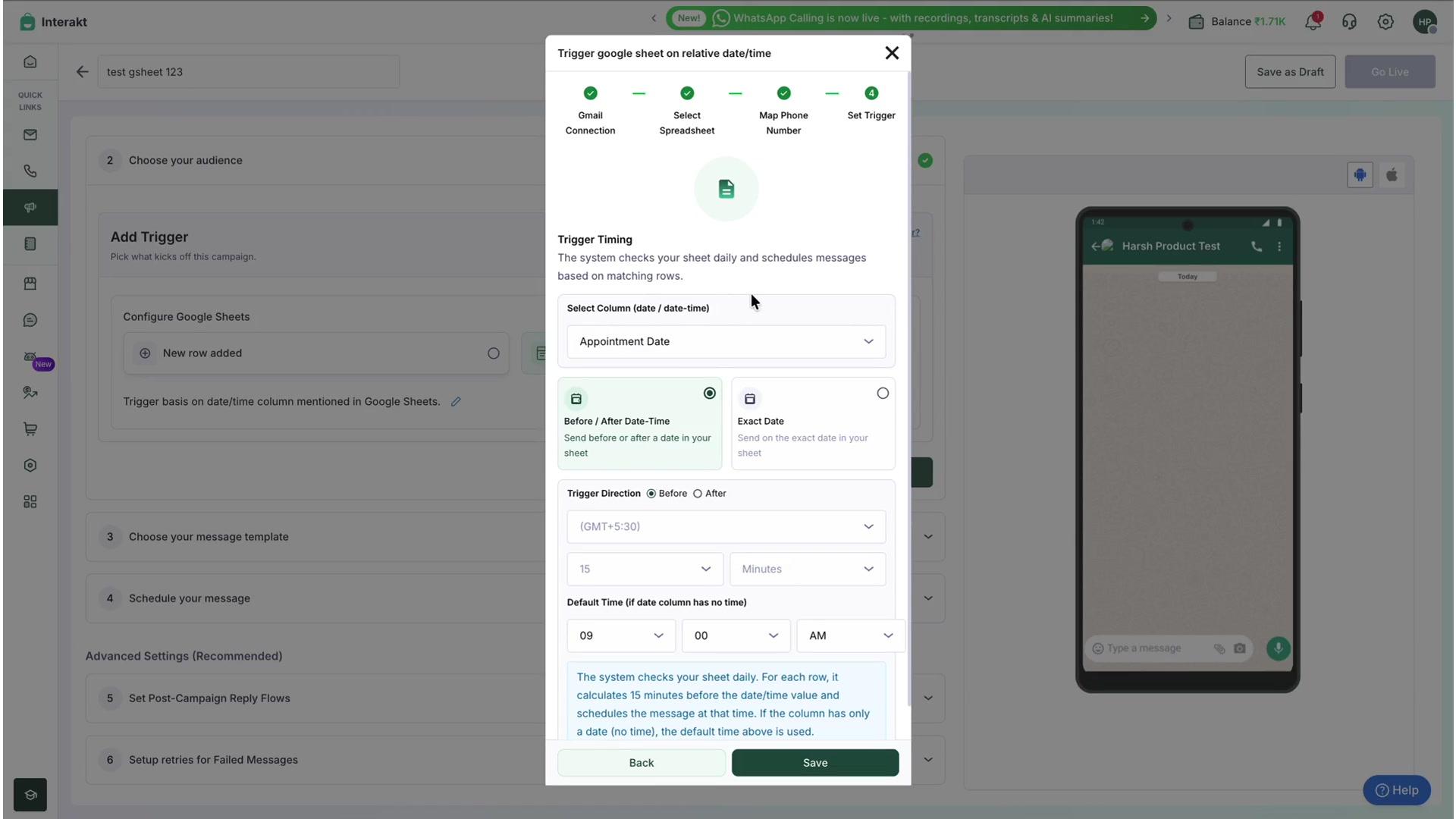
At the final step, Trigger Timing, first select the date/date-time column from your sheet (e.g. Appointment Date). Then choose one of two timing modes:
- Before / After Date-Time — send a message a set number of minutes/hours/days before or after the date-time in that column. Configure the Trigger Direction (Before/After), timezone, and the offset (e.g. 15 Minutes). You can also set a Default Time to use if a row's date column has no time value.
- Exact Date — send the message exactly on the date found in the column, at an Execution Time you specify (e.g. 10:00 AM).
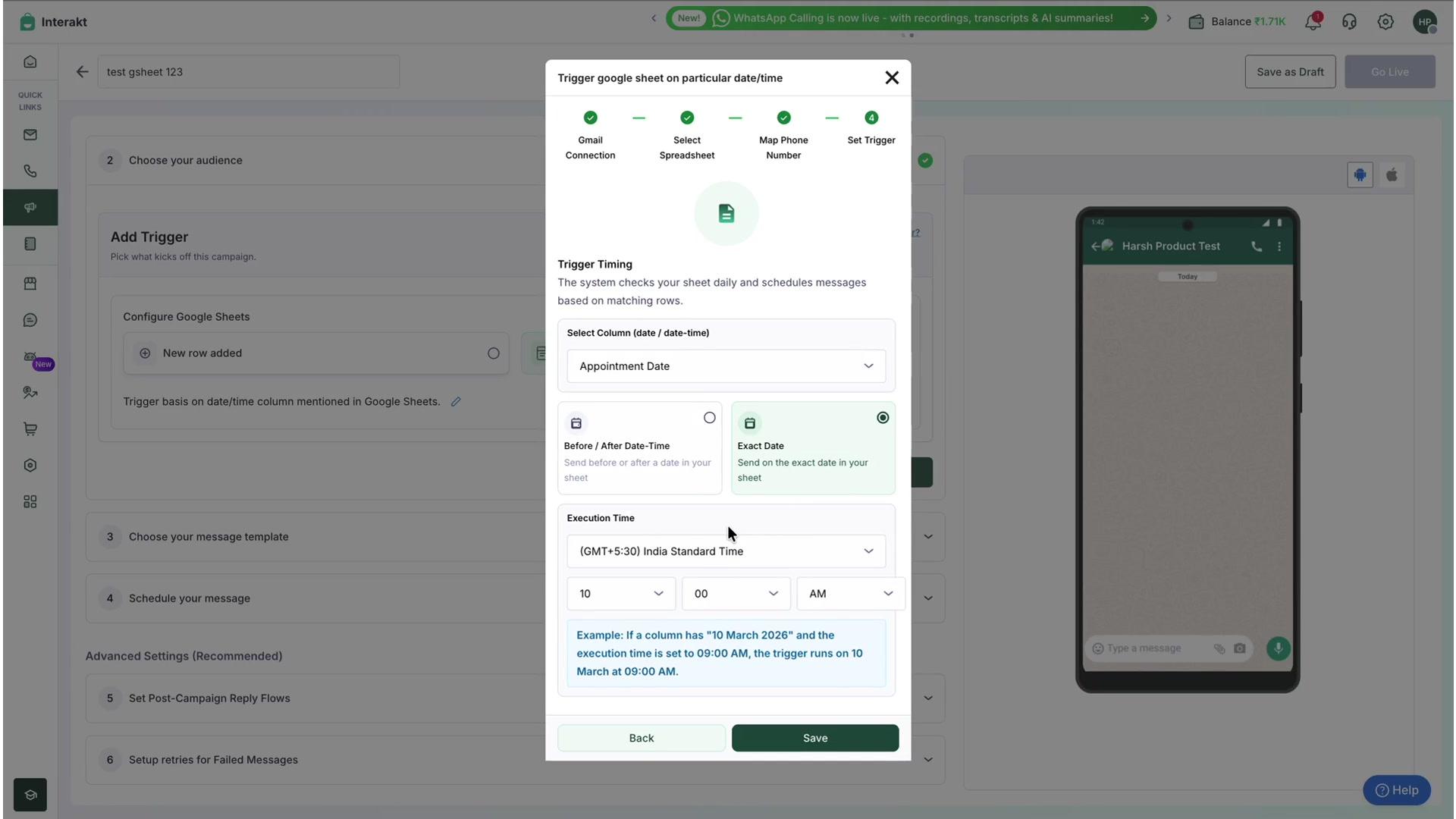
| Note: Interakt checks the sheet daily and schedules messages based on matching rows. For example, with "Exact Date" and execution time set to 09:00 AM, a row dated 10 March 2026 triggers the message on 10 March at 9:00 AM. |
Click Save once your timing is configured.
Step 4: Choose Your Message Template and Map Variables
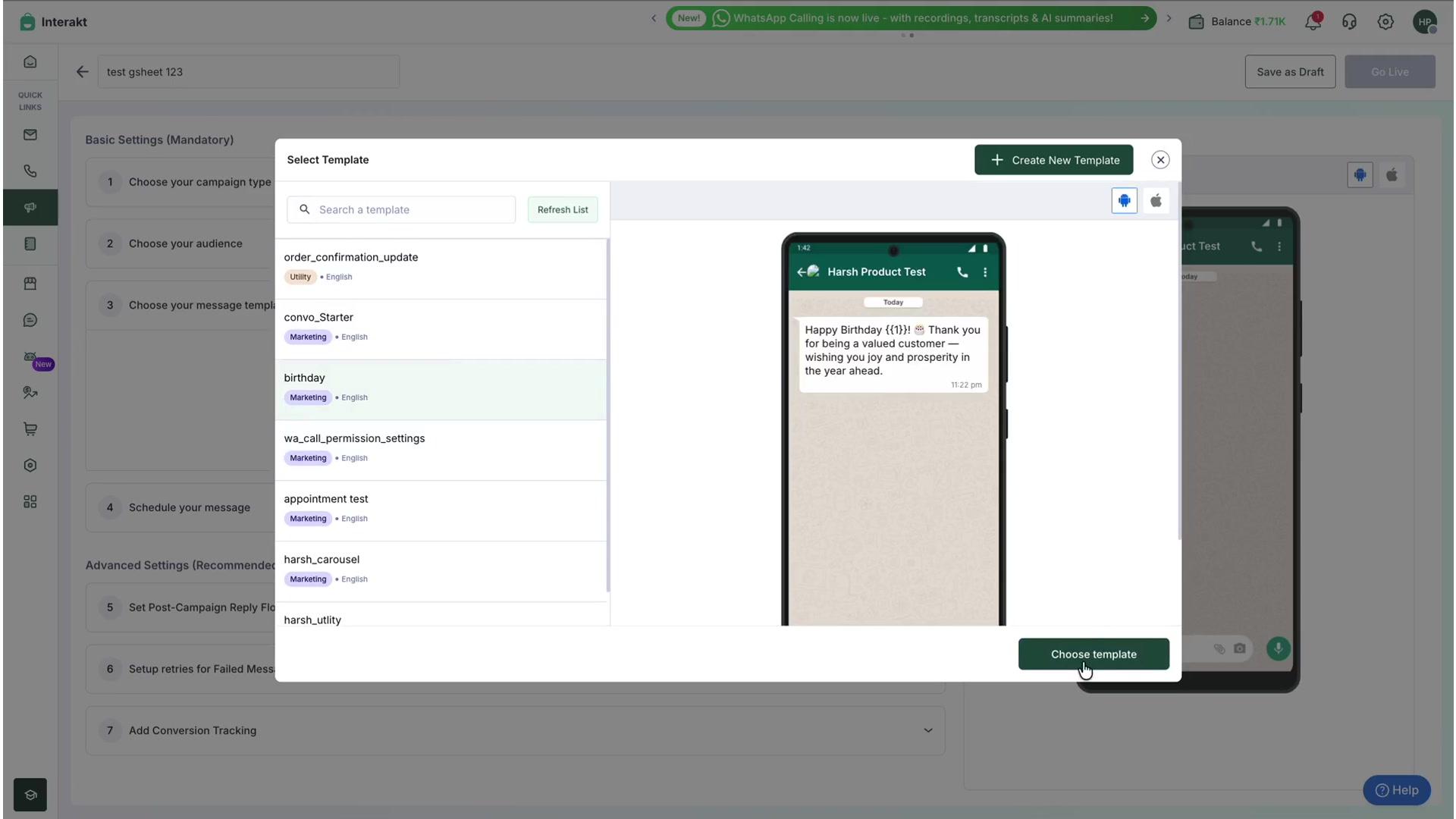
Open section 3. Choose your message template and click Choose template. Pick an approved WhatsApp template from your library.
If your template has variables (like a name placeholder), expand Configure Body Variable for each one and choose where its value should come from:
- Contact Fields — Name, Email, etc. from the contact's Interakt profile
- Event Data — Order ID, Amount, etc. from an event
- Fixed text — the same static text for every message
- Sheet Column — pull the value directly from a column in your connected Google Sheet (e.g. Name, Appointment Date)
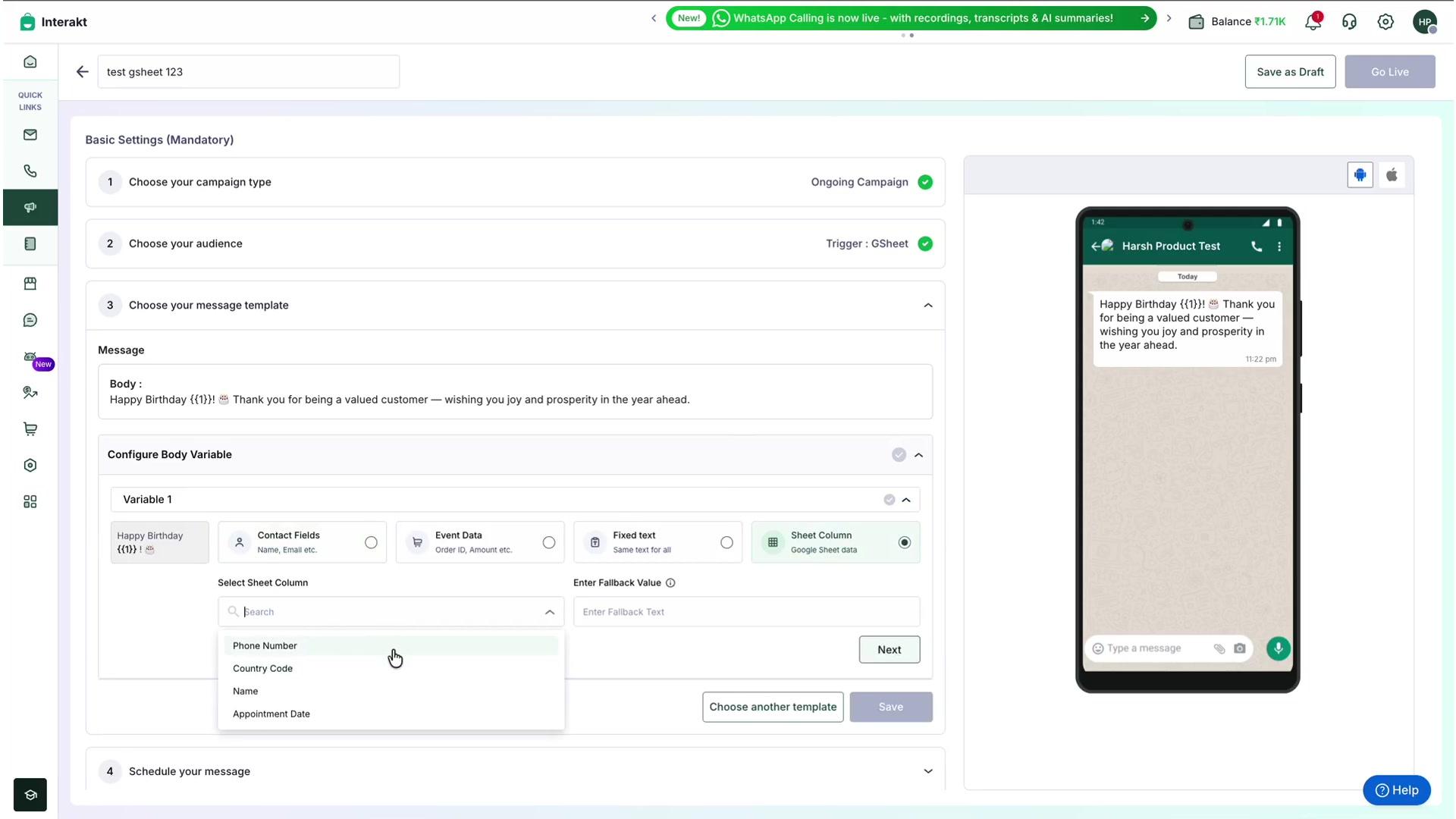
When you choose Sheet Column, also set an Enter Fallback Value — text to use if that cell is ever empty for a given row (e.g. "NA").
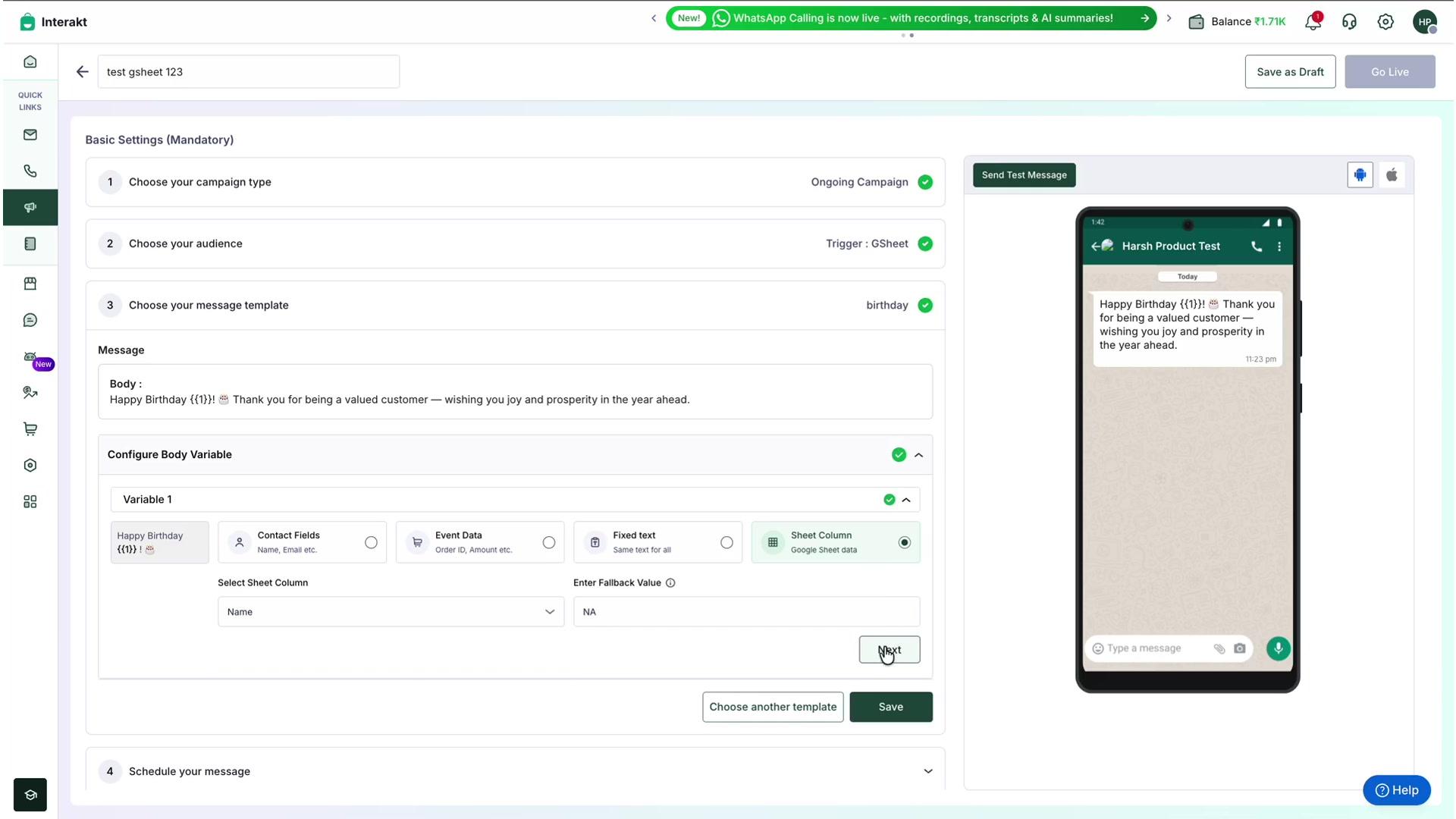
Click Save once every variable is mapped.
Step 5: Schedule Your Message
Open section 4. Schedule your message and configure:
- Start Sending — Immediately (as soon as the trigger fires) or on a Custom date.
- Stop Sending — Never, or until a Custom date, after which the campaign will automatically stop checking the trigger.
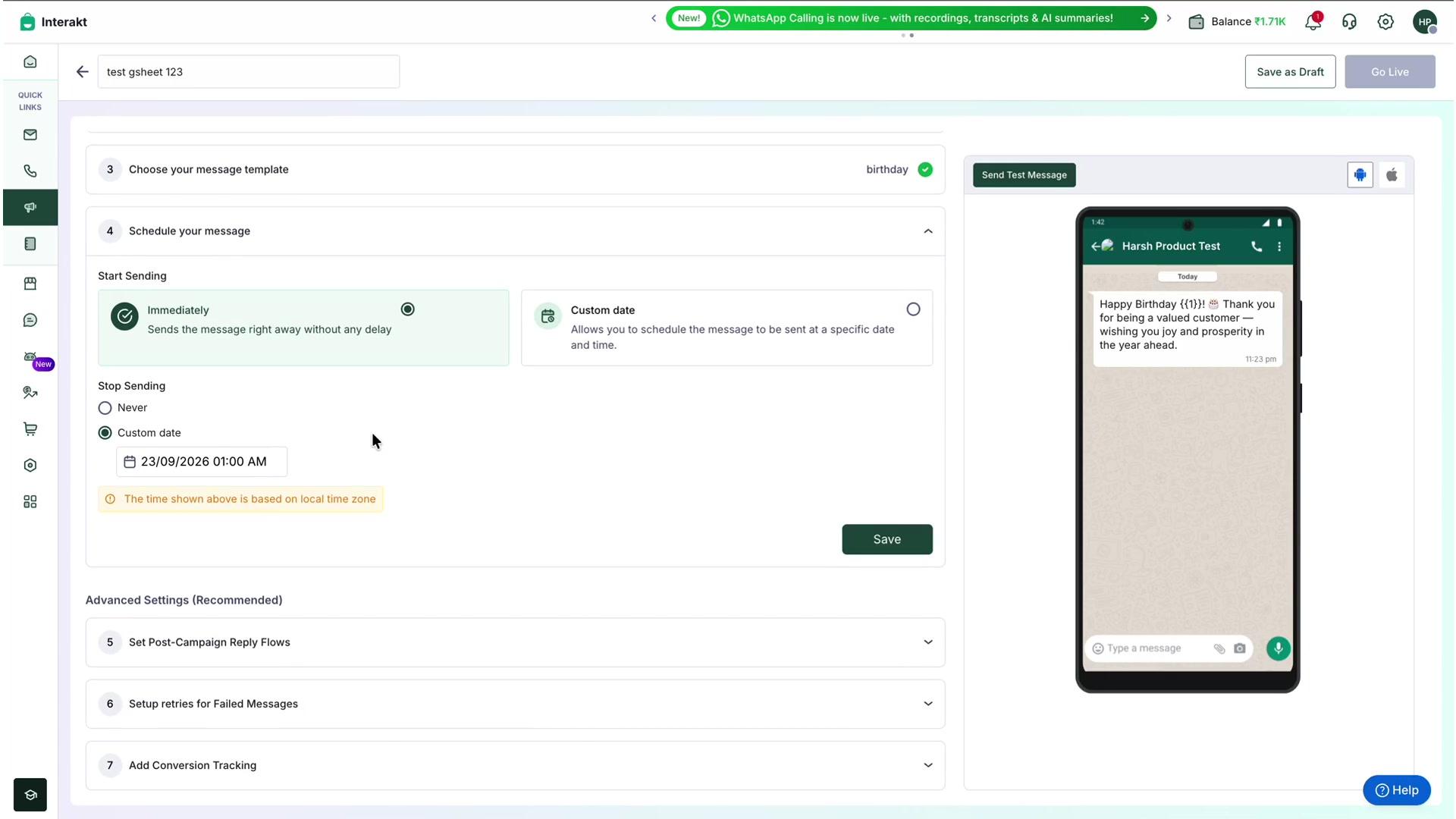
| Note: Times shown here are based on your local time zone. |
Step 6: Review and Go Live
Once all four mandatory sections — Campaign Type, Audience/Trigger, Message Template, and Schedule — show a green checkmark, review the summary and click Go Live in the top-right corner.
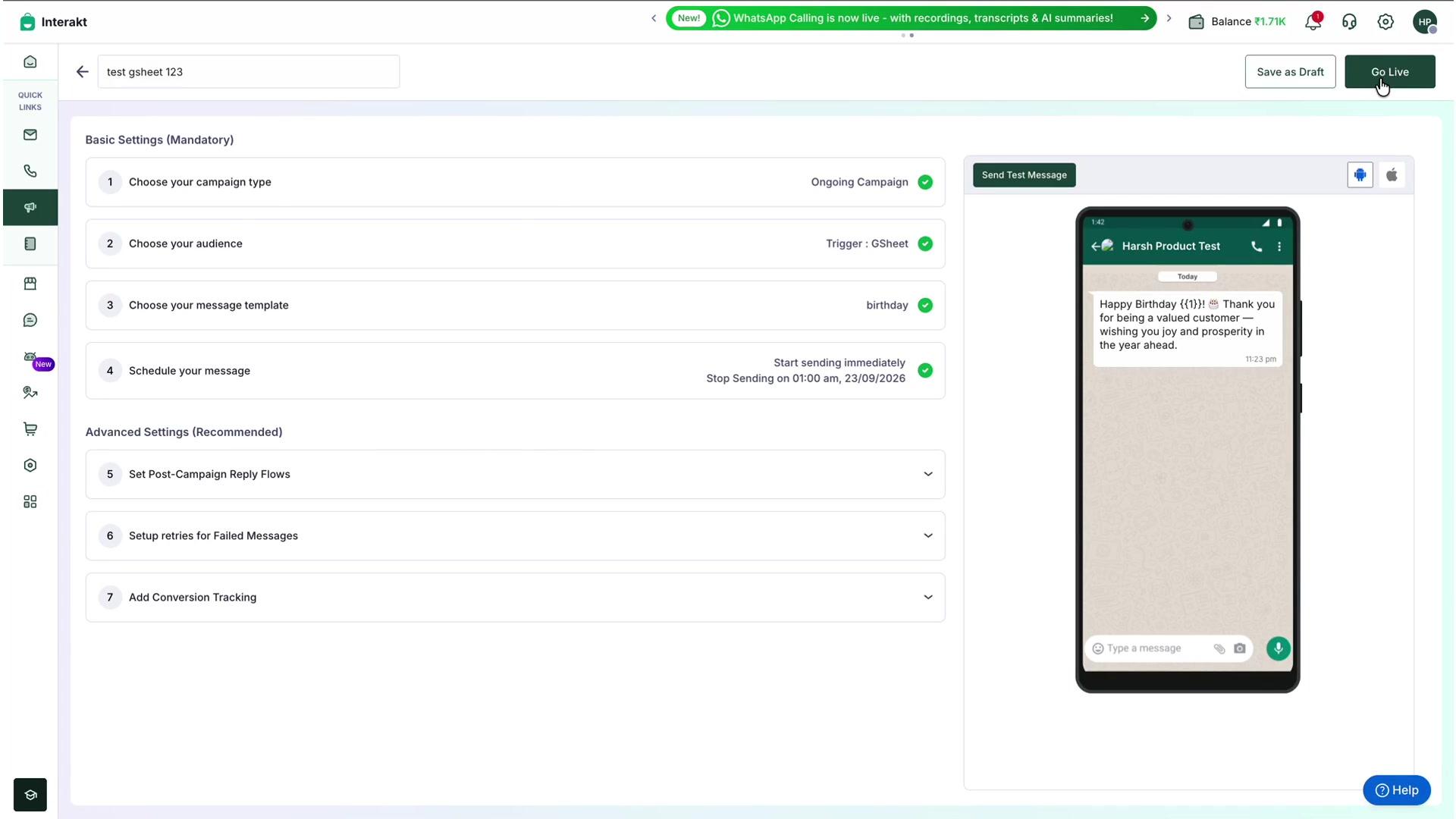
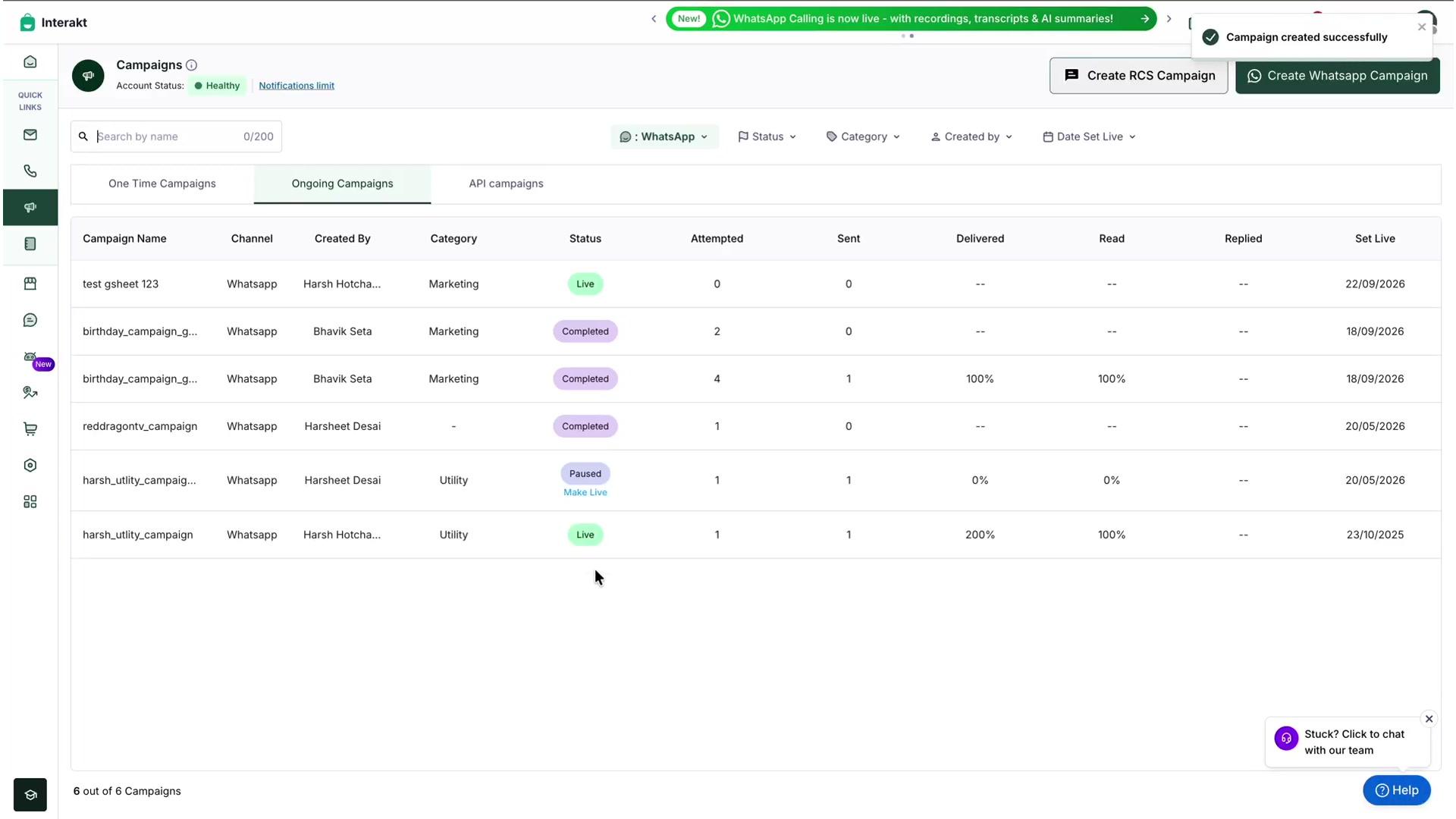
You'll see a "Campaign created successfully" confirmation, and your campaign will appear under Campaigns → Ongoing Campaigns with a Live status. From here, Interakt monitors your Google Sheet in the background and sends WhatsApp messages automatically whenever your trigger condition is met.
Quick Recap
With Interakt, your Google Sheet becomes a powerful campaign trigger. You can automatically send a WhatsApp campaign when:
- A new row is added to the sheet
- A specific date or time is reached
- A reminder is due before or after a date
- A message needs to be sent on an exact date
Once live, monitor delivery and performance from the Ongoing Campaigns list just like any regular Interakt campaign.
Need Help?
If you run into any issues while setting up the Google Sheets integration, reach out to the Interakt support team at [email protected].